
CGNAT port forwarding workaround: reaching your own devices
- cgnat
- port-forwarding
- nat-traversal
- private-network
- relay
- tailscale-alternative
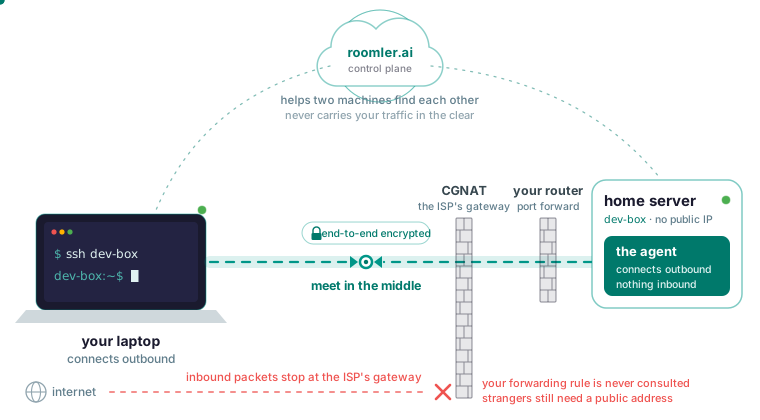
Yes: you can reach your own machines behind CGNAT with no public IP, no VPS and no inbound port, provided you are the one reaching them, because an agent on each machine connects outbound and the two connections meet in the middle. The agent needs outbound TCP 443, outbound UDP and nothing inbound, so there is nothing to forward on the router. Anything strangers must reach still needs a public address, and that is the case the top search results sell a VPS for.
Why your port forward never worked
Your router’s WAN side holds an address from a range the ISP shares among many customers. Inbound packets stop at the ISP’s gateway, which has no mapping for them, so they never reach your router and your forwarding rule is never consulted. If the WAN address on the router’s status page differs from what a what-is-my-IP site reports, or sits inside the shared range RFC 6598 reserves for ISPs, you are behind carrier-grade NAT. Starlink Residential and Roam, most 4G and 5G home routers and some cable and fibre ISPs work this way.
Before paying for a fix, split the problem in two. If strangers must reach you, for a game server or a website, you need a public address: a public IPv4 from the ISP if they offer one, IPv6 where they provide it, a VPS with a WireGuard reverse tunnel in front of your box, or a tunnel service with a public URL. A commercial VPN that sells port forwarding belongs on that list too, as a rented public endpoint on the provider’s server. If only you must reach your own machines, you need none of it: the one inbound port anywhere is on a machine you deliberately configure to relay other machines’ traffic, and that part is optional.
How two machines meet with no inbound port
The ports and firewall page lists what the agent needs per direction: outbound TCP 443 to the server for the control connection and the connectivity floor, outbound UDP to peers and relays for direct paths and hole punching, and nothing inbound. Within that, the home server and your laptop try a ladder of paths and take the best one that works:
- On the same LAN, they use it.
- If one end has a public address, they connect directly across the internet.
- If both are behind NAT, your case, the two ends coordinate to open a path through both NATs at once; the docs call this hole punching the common case and say it works far more often than people expect.
- If no direct path exists, traffic goes through a relay that only ever sees ciphertext.
- Where every UDP path is blocked, the mesh still runs over TLS on port 443.
Which rung a pair lands on comes from measuring what works, and a NAT-type label is only ever a hint: in the docs’ words, heuristics may detect, they never decide. The server’s part is small: it hands each machine the list of peers it may reach, helps two machines find each other, and never carries your traffic in the clear.
Put the home machine and your laptop on one mesh
The quickstart takes the home machine from a new workspace to an enrolled device, and the same agent then puts it on your private mesh with a stable address and a name, with no port forwarding and no public exposure.
On the laptop, install the agent if you want to reach the laptop too, or just the tunnel client if it will only ever reach out: the tunnel client opens tunnels but does not join the mesh and cannot itself be reached. On Windows and Linux the mesh comes up with the agent; on macOS it needs the root half of the install, which is a second enrollment.
Each machine on the mesh gets a private address that stays the same when it moves between networks. It also gets a name, taken from the device name you chose at enrollment, which you can use instead of the address. Two commands tell you where you stand:
roomler status    # this machine: address, name, and how it is connected
roomler peers     # everything else on the mesh, and how each one is reached
The first prints this machine’s address, its name and how it is connected. Being connected to the server and having a mesh address are separate facts, so that one line carries both. The second lists every other machine, its address and the path currently carrying it. A device can be Online in the dashboard with no mesh at all, and when that happens the peers output names the organization whose mesh is off instead of leaving it out.
Check which rung you landed on
Run roomler peers on either machine and read the path next to the other one; a remote-desktop session shows the same thing as a LAN / Direct / Relay indicator. LAN is the same local network, a few milliseconds; Direct is straight across the internet, with the network’s own latency; Relay is traffic bounced through a relay, with higher latency and capped bandwidth. Behind CGNAT that will often read Direct, because hole punching is the common case.
Relay is a stage the pair keeps trying to leave: it re-attempts a direct path permanently, and there is no state in which the software has given up. When a better path appears, the new one is established before the old one is torn down, so the upgrade does not interrupt a live session.
Three commands explain the result:
roomler peers
roomler why <peer>
roomler netcheck
The CLI reference describes roomler why as the command for one pair: the ladder, which tiers were eligible, what each scored, and any hold-down overriding the ranking. roomler netcheck reports this machine’s reachability, relay verdict, floor health and NAT class, as measured from the machine itself.
Path changes are not always symmetric: one end can converge before the other, so for a while one machine can see the peer while the peer does not see it, and the display is telling the truth; it resolves, though it can take longer than you expect.
If the two machines sit on the same home LAN and still show Relay, the ISP is innocent: a VPN client on one end has usually captured the local network range, and disconnecting it and watching the pair converge confirms it in under a minute.
When hole punching fails: symmetric NAT and the relay
Some carrier NATs assign a different external port for every destination. When both ends sit behind one, say the home box behind CGNAT and the laptop on a phone hotspot, hole punching cannot work and the relay is the right answer; cannot connect says this is common on some mobile networks and a few corporate firewalls.
A relay costs speed: it is slower and bandwidth-capped because another machine forwards your packets, and for remote desktop the docs call the difference dramatic. Privacy is unaffected, because every rung is encrypted end to end and a relay forwards bytes it cannot decrypt.
Relays come in three kinds, in increasing order of preference: the TLS floor on the server, which is always available; a standard UDP relay, Roomler’s or yours; and an organization relay on a machine you own, which keeps traffic off Roomler’s infrastructure and measurably outperforms the shared path. An organization relay listens for inbound UDP on port 3478 by default, on that one machine, and only because you deliberately enabled relaying there. So pick a machine where an inbound UDP packet can arrive, which rules out the CGNAT home box.
Four things gate it: an organization mode that is off by default, an access rule making the relay visible to each party, a per-device approval needing two permissions, and the machine’s own opt-in, which the server cannot push. The opt-in is the relay_server_enabled key in the machine’s configuration. The relay engages on a path change, and switching it on does nothing to a pair already sitting on the floor, so when you test it, restart one of the two machines to provoke the decision. roomler why from the previous section then shows what the pair decided.
When UDP is blocked: the 443 floor
The other end of the pair is your laptop, and sooner or later it sits on a network that passes only web traffic: a hotel, a guest network or a mobile hotspot. With outbound 443 alone, everything works and the paths are relayed. Once outbound UDP is permitted, direct paths become possible. With outbound 443 blocked, nothing works; that is the minimum.
The tell on the troubleshooting page is a laptop that is Direct everywhere except one network, which usually means that network permits only TCP 443: the mesh keeps working there, on the floor, and it will not be direct. If the network is yours to configure, allow outbound UDP; that is the difference between relayed and direct, and between usable and pleasant for remote desktop. If it is not yours, accept the relayed path while you are there.
roomler netcheck # what this machine can actually reachRun that on the laptop while it is there; it reports what the machine can reach as measured, the reading to trust on a restrictive network. Port 443 is the floor because a network that allows the web at all has to leave it open. With every UDP path blocked the mesh still runs over TLS on that port, so what a restrictive network costs you is quality, and the connection still comes up.
What you can reach once the pair is up
A port forward from your laptop to a service on the home server runs from a port on localhost on your side, over the mesh, to the agent at home and on to the service, which keeps listening only where it always did. Nothing is exposed to the internet.
roomler forward --agent <agent-id> --local 5432 --remote localhost:5432The --agent flag takes the hex device id from the device’s page in the dashboard; a display name is not resolved there and fails in a way that looks like the device is missing. The command stays in the foreground and tears the forward down on Ctrl-C. For a forward you always want, declare a route instead:
roomler route add --agent <agent-id> --local 5432 --remote localhost:5432
roomler route ls
The agent reconciles declared routes on every start, so the tunnel survives a reboot, and it backs off instead of hammering the server when one cannot be established. UDP works as well as TCP, which covers DNS, game servers and some VPN protocols through a tunnel, with your own client reaching your own server.
SSH to the home box needs no sshd, no bound port and no firewall rule, including on Windows, because packets to the machine’s mesh address on the SSH port are diverted into the agent below the socket layer. It is off by default until the organization, your permission, the device’s policy and the machine’s own configuration all allow it. If you named the home machine dev-box at enrollment:
ssh dev-boxFor the NAS or printer that will never run an agent, make the home server a subnet router: it advertises the LAN range, an administrator approves it in the dashboard, and every other device on the mesh can then reach that range through the home server. A laptop on 192.168.1.0/24 that suddenly routes 192.168.1.0/24 over the mesh has lost its own router, so advertise the narrowest range you need, from one machine only, or renumber one side. The home desktop’s screen opens in a browser tab from Devices, then View screen.
What this does not do
There is no public ingress. Roomler’s tunnels reach into your network from your own devices, and the compare page says publishing a service to the public internet from a node is a first-class Tailscale feature with no Roomler equivalent. So a public game server, a website for strangers or a media server for people who will not run the agent still needs one of the public addresses from the first section, and for that case those are the right tools.
Two smaller limits follow from the same design. Remote forwarding with ssh -R is deliberately not implemented, because it would make the device bind a listening socket. And relaying is only a fallback for when no direct path exists, so Roomler is not a public-relay service by default. Self-hosting adds one more: the server is the one piece that needs an inbound port, its HTTP port behind your TLS terminator. Every agent dials that on outbound TCP 443, so the server goes on a VPS or another reachable machine and never on the CGNAT box.
Tailscale does several things better, and the compare page lists them first: maturity and scale, platform coverage that includes iOS and Android, identity integrations such as SSO and SCIM, and a larger community with more published recipes. Its side-by-side table marks public ingress and mobile apps as things Tailscale has and Roomler does not. The Choosing list sends you to Tailscale for mobile, public ingress or enterprise SSO. And if a private network between your machines is all you need, with none of Roomler’s differences mattering to you, the same page calls Tailscale an easy recommendation. If the home desktop’s screen in a browser tab is on your list, that is the difference that matters here.
Put two of your machines on one private mesh in a few minutes with the quickstart.