
Remote desktop clipboard not working: causes and fixes
- remote-desktop
- clipboard
- troubleshooting
- file-transfer
- rdp
- teamviewer-alternative
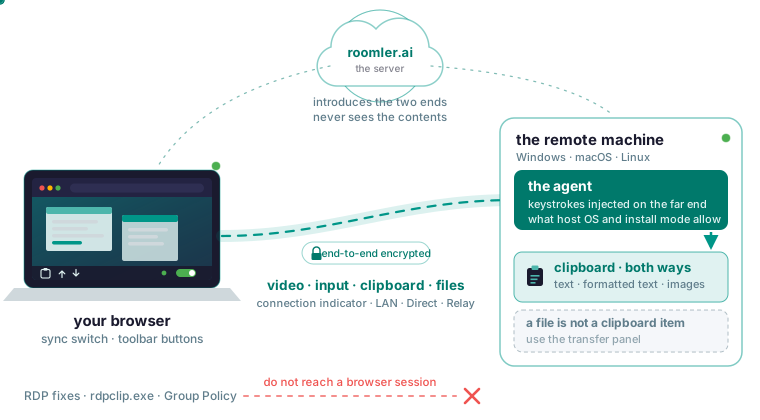
If paste is not working in a Roomler browser session, the usual fixes are for a different tool. Ticking Clipboard under Local Resources, restarting rdpclip.exe and the Group Policy setting for clipboard redirection act on Microsoft RDP. A Roomler session carries the clipboard over the same peer-to-peer path as the video, with the server out of the way. Paste fails for one of five reasons, in this order: the session ended, sync is off for this session, you copied a file, the host’s OS or install mode holds it back, or the paste keystroke never reached the far end.
Why the RDP fixes do not reach a browser session
The top results for “remote desktop clipboard not working” are RDP articles, and they agree: tick Clipboard under Local Resources in the RDP client, restart rdpclip.exe on the remote machine, check the Group Policy “Do not allow Clipboard redirection”, log off and back on. The Chrome Remote Desktop threads add two of their own: click Allow on its clipboard permission prompt, and turn sync on in its side panel. All of that acts on RDP’s clipboard redirection or on Chrome Remote Desktop’s own settings, and inside those tools it is sound advice.
When you click View screen in a Roomler session, the server checks that you are allowed, introduces the two ends, and leaves them to negotiate the fastest path that works: local network first, then a direct internet path, then hole-punching, then a relay. Video, input, clipboard and file transfer flow over that path, and the server never sees the contents. Clipboard and file transfer ride their own data channels. The session is encrypted end to end between browser and agent, and a relay, where one is needed, forwards ciphertext. RDP keeps one advantage here: between two Windows machines its clipboard redirection can carry a copied file, and in a Roomler session a file is not a clipboard item.
Check the session and the sync switch first
The clipboard moves while the session is open, and stops when the session does. Closing the tab or clicking Disconnect ends the session. That is the usual story behind “remote desktop clipboard stops working”: the session went away, you came back, and whatever you copied in between was never sent.
Before you try again, read the connection indicator: LAN, Direct or Relay confirms the session is live and says how the two ends are talking, and Relay means higher latency and capped bandwidth. The clipboard rides whichever path was negotiated, a relay included. Path changes are make-before-break, with the new path established before the old one is torn down, so an upgrade or a fallback should not interrupt a live session. From a terminal, roomler peers shows the same path:
roomler peersThe second check is the sync switch. With auto-sync on, what you copy follows you without a click, and the clipboard buttons on the session toolbar send or fetch it on demand. Sync can be turned off per session. If someone else set the session up and switched it off, paste does nothing until you press the toolbar button for that one item or turn sync back on.
Text and images cross, a file needs the transfer panel
The third check is what you copied. Text, formatted text and images cross in both directions. A Windows host notices copied images by itself, and so does a Linux desktop on X11 with a per-user install from agent 0.4.148 and a Mac from agent 0.4.154. On a Linux desktop under Wayland, and on a Mac or an X11 per-user install older than those versions, the image waits to be fetched: text still follows you automatically, and the clipboard button brings the image across. So when text follows you and an image copied on the host never shows up, press that button before you suspect the session.
A file is not a clipboard item: copying a file object in the remote file manager does not carry the file. Drag the file onto the session window to send it to the remote machine, or open the session toolbar’s transfer panel to pull one back. Transfers are resumable, run in both directions and show progress per transfer, and the bytes ride the same peer-to-peer channel as the video, so the server never holds the file. A sent file lands in the Downloads folder of the person signed in at the remote machine’s screen, unless its owner chose another folder in the desktop app’s Incoming files card, and a name clash gets a numbered copy. With nobody signed in at the screen of a machine whose agent runs as a system service, the file lands in the service’s own folder.
For scripted or repeated file movement a session is the wrong tool: use SFTP over Roomler SSH, where scp and sftp work against a node with no sshd, or a tunnel to the file service’s port. The tour of the remote desktop has a section on files and the clipboard.
What the host’s OS and install mode allow
The fourth check is the host’s operating system and install mode. The platform table has a row for the clipboard and one for whether a copied image arrives by itself, and the per-OS permissions page covers the grants behind them.
On Linux the table marks the clipboard as working with a per-user install and not with a system install. A Linux machine whose agent runs as a system service outside any desktop session has no clipboard to share, and its clipboard buttons stay greyed with the reason in their tooltip. The per-user unit is the default and shares the session you are logged into; the system install, --system, runs as root from boot and is the only one that puts the machine on the private network with its own adapter. One daemon per machine is the rule, so you choose with that trade-off in view, and the Linux install page covers both modes. The desktop install is one line:
curl -fsSL https://roomler.ai/api/setup/install.sh | sh -s -- \
  --role daemon --token <token> --server https://roomler.ai --name "$(hostname)"
Then check which kind came up:
roomler status     # per-user install
sudo roomler status # system install
On a Mac the agent is two halves: the user half runs as you inside your GUI login session and does screen capture, input injection and clipboard, and the root half runs as root from boot and does the mesh and tunnels. A root process in session 0 has no WindowServer, so a Mac with only the root half installed has no desktop to share. With the user half in place, the table shows the clipboard working on a Mac. The macOS install page has the one-liner for each half.
On Windows the table marks the clipboard as working, with no mode caveat. The three service modes decide which desktop the agent can see: Machine system runs as a Windows service and is reachable at the lock screen, through UAC prompts and before anyone logs in; Machine attended needs a user logged in; Per user needs you logged in. So if the whole picture froze on the last frame when the host showed a UAC prompt or locked, that is the secure desktop, the agent is not in system mode, and paste stopped along with everything else. That is a session problem, and the fix is to re-run the installer with -Role daemon-system. From an Administrator PowerShell:
& ([scriptblock]::Create((irm https://roomler.ai/api/setup/install.ps1))) -Role daemon-system -Token <token> -Server https://roomler.aiPaste shortcuts that never reach the far end
The last check is the keystroke itself. Keystrokes are injected on the far end, so the remote machine’s own keyboard layout applies. On a Mac host, a missing Accessibility grant means keys and clicks are silently dropped, with no dialog, no log entry and no error anywhere. The quick-diagnosis row reads “Screen fine, clicks and keys do nothing”. Open System Settings, then Privacy & Security, and enable Roomler Daemon under Accessibility, and under Screen & System Audio Recording for capture. Then restart the user half:
launchctl kickstart -k gui/$(id -u)/com.roomler.agentYou do not have to hunt for the missing grant: the menu-bar app names it and opens the right pane, and the device list shows “No input access” before you connect. The grant governs keys and clicks, so it is the paste keystroke that fails.
The controlling side can swallow the shortcut too: if you control from a Mac, most Cmd combinations are intercepted by the macOS you are sitting at before the browser ever sees them, so use the session toolbar’s key-send control for those. Mac-to-Windows and Windows-to-Mac sessions remap the modifier keys so the combination you press means what you expect on the far side.
The clipboard is shared both ways, passwords included
Anything you copy on either machine becomes available to the other while the session lasts, and the docs put a warning box on it: be aware of that before copying a password on the machine you are controlling from. The remedy is the per-session switch: turn clipboard sync off for a session where you would rather it did not follow you, and send single items with the toolbar button.
The server holds none of it. Its job for the data planes ends once two machines can find each other; after that it is not on the path, so there is nothing for it to log even in principle, and a relay forwards ciphertext it cannot decrypt. No session contents are recorded server-side: no pixel stream, no keystroke log. Pixels, keystrokes, clipboard and files travel directly between the two ends, encrypted, or through a relay that carries only ciphertext. What the server sees lists what it does hold.
What to gather if it still fails
Two commands answer most questions: roomler status prints this machine’s version, organization, connection and mesh address, and roomler peers lists every peer and how each one is reached. The minimum for a report adds the version, run on the host:
roomler status
roomler peers
roomler --version
For anything that looks like a connectivity problem, gather both ends; one side’s output is half the picture. When you open an issue, include what you expected, what happened with the exact message, the operating system and version on each end, whether it is the hosted service or self-hosted, and whether it ever worked and what changed. That last point is the one most often omitted and most often decisive. Do not paste config.toml, which holds the agent token, and keep enrollment tokens out of anything you share.
Try it on one machine
Windows, macOS and Linux each have their own install page, and the agent installs from a one-line command on all three. Click the device, then View screen; by default the machine asks the person sitting at it before handing over the screen. Install Roomler on one machine and open its desktop from a browser tab, starting with the quickstart.