
Remote desktop on Linux Wayland: GNOME, KDE and wlroots
- remote-desktop
- linux
- wayland
- gnome
- kde-plasma
- unattended-access
- teamviewer-alternative
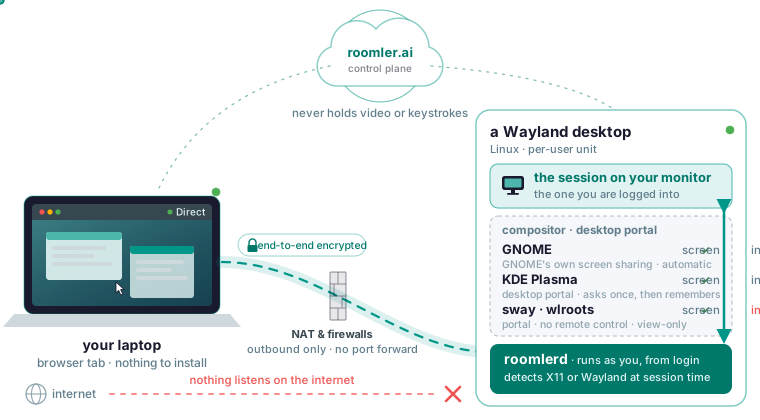
Install Roomler’s agent on the Wayland machine as a per-user unit and it shares the session you are logged into, detecting X11 or Wayland at session time. From another network you open that desktop in a browser tab, with nothing installed on the viewing side and no port to open or forward on either end. GNOME and KDE Plasma give you the screen and input, while sway and other wlroots compositors give you the screen only. Roomler is one agent per machine: a remote desktop in a browser tab plus a private network.
Why the usual Wayland answers stop at your LAN
Tools from the X11 era, such as x11vnc, grab the physical X display. Under Wayland, capture goes through the compositor and the desktop portal instead, which is why they show you nothing or a black frame. Logging into an Xorg session brings them back by taking you off Wayland.
GNOME Remote Desktop and KDE’s KRdp do work on Wayland, but as RDP servers for the local network. Their setup guides warn against forwarding the RDP port, so getting in from outside means a VPN or an SSH tunnel first. xrdp takes another route: it starts its own X session, so you land in a fresh desktop while the one on the monitor stays out of reach.
Wayland also makes all this hard to debug: when capture is missing you get a black screen or input that does nothing, and no error message says why.
Per-user unit, system install or virtual display
What you will see depends on how the agent runs, so decide before you install.
| Mode | Runs as | What you see |
|---|---|---|
| Per-user unit (the default, no flag) | You, from login | The session you are logged into, on X11 or Wayland |
System install (--system) |
Root, from boot | The signed-in person’s GNOME or KDE desktop while it is on screen and unlocked and they can be told who is viewing, but never the login or lock screen by itself |
| Virtual-display mode | Root, as a system install | A screen the agent gives the machine, which View screen opens as a live console |
Where xrdp opens a separate desktop, the per-user unit shows the one already on your monitor; virtual-display mode is for a box with no session on a monitor at all, such as a headless server. Turn that mode on in the device’s configuration, where the setting survives a reboot.
The per-user unit also syncs text, formatted text and images on the clipboard, which a system install does not do yet. The system install is the only one on Linux that joins the private network with the machine’s own network adapter. One daemon runs per machine, so pick one of the two installs (Install on Linux compares them).
Install the agent and open the screen
Start in the dashboard: open Devices and choose Enroll device. The token you get is single-use and short-lived, so paste it into a terminal and keep it out of chat rooms.
On the Wayland desktop, run the per-user line from your own account, the one whose desktop you want to reach:
curl -fsSL https://roomler.ai/api/setup/install.sh | sh -s -- \
  --role daemon --token <token> --server https://roomler.ai --name "$(hostname)"
For a headless box, or a desktop that should be on the private network from boot, use the system line instead:
curl -fsSL https://roomler.ai/api/setup/install.sh | sh -s -- \
  --role daemon --system --token <token> --server https://roomler.ai --name "$(hostname)"
The script installs the .deb on Debian and Ubuntu derivatives (x86_64 and arm64) or a tarball elsewhere, verifies its SHA-256, enrolls the machine and enables the unit. For a self-hosted server, put its URL after --server. Then check that it came up:
roomler status     # per-user install
sudo roomler status # system install
A healthy machine reports its version and organization and shows its control connection as connected.
From a browser on another machine (a different network makes the better test), open Devices, pick the machine and click View screen. Use Chrome, Edge or another Chromium browser for the viewer. By default the machine asks whoever is sitting at it before it hands over the screen.
What you get on GNOME, KDE Plasma and wlroots
With the per-user unit, capture and input depend on the desktop, as per-OS permissions lists:
| Session | Screen | Input |
|---|---|---|
| X11 | Direct capture | Direct injection |
| GNOME on Wayland | GNOME’s own screen sharing, automatic; nobody at the screen is asked | Automatic |
| KDE Plasma on Wayland | The desktop portal, which asks the person at the screen once and then remembers | Through the portal’s remote control |
| sway and other wlroots compositors | The desktop portal, marked less tested | None, because the wlroots portal has no remote control |
On KDE, answer the portal’s question while you are at the machine, before you count on reaching it unattended. That question is the desktop’s own permission, and Roomler’s consent prompt is separate from it: the prompt asks by default on every desktop, GNOME included, until you set the device to Automatic.
A sway machine is view-only: the picture arrives, and clicks and keys have no effect. The wlroots portal has no remote control, so there is no permission to hunt for; to type or click on that machine, use a GNOME, KDE Plasma or X11 session there.
A system install on GNOME or KDE reads the session only while it is on screen and unlocked, and only if the person can be told who is viewing, through a banner from the desktop app or a desktop notification.
Reach it from another network without opening a port
Where the RDP guides send you to a VPN, an agent only connects outward: TCP 443 to the server and UDP to peers and relays. Nothing on it listens on the internet, and no machine needs a port forward on its router.
The two ends take the best path that works, in this order: the same LAN, direct across the internet, hole-punched through NAT, then a relay. When every UDP path is blocked, the mesh still runs over TLS on port 443. Every path is encrypted end to end, and a relay forwards ciphertext it cannot read. The server never holds your session video or keystrokes.
The session window’s connection indicator reads LAN, Direct or Relay. On a machine that runs the agent, this lists every peer with the path currently carrying it:
roomler peersIf a session from outside feels sluggish, check the indicator: a slow session is almost always a relayed one, and the usual cause is a VPN client on one end that captured the local network range. Where that VPN client is yours to switch off, disconnecting it on one end shows whether the pair converges to direct.
Leave it unattended
Unattended access comes down to two settings. The first skips the prompt: set the device’s consent mode to Automatic. Every other value asks, as does a device with no consent setting. If the device itself is set to always ask, choosing Automatic on the server does not override it.
While the device asks, GNOME and KDE on Wayland get the question from the Roomler desktop app, since those desktops let no ordinary app draw over them. On Linux that app ships only as a .deb and an .rpm, with nothing for Arch. A request nobody answers ends as timed out, and one where nobody could be asked ends as “no prompt surface”; you are told which.
The second setting makes the machine reachable with nobody at the screen. The per-user unit needs you logged in, and a system install shows the GNOME or KDE session only while it is unlocked. On a system install, switch on screen capture and input in the device’s configuration, with the keys drm_capture and uinput, to reach the login and lock screens too. The agent then reads whatever the screen shows, login screen included, which is the Linux counterpart of the Windows system mode.
A machine already on the per-user unit moves to a system install in three steps. Enroll the root daemon with a fresh token, because the first one is spent, then register the service, which refuses until that config exists:
sudo roomlerd --config /etc/roomler/config.toml enroll --server https://roomler.ai --token <token> --name "$(hostname)"
sudo roomlerd service install --as-service      # alias: --system
Then, as the account that runs the per-user unit, stop it, since one daemon per machine is the rule:
systemctl --user disable --now roomler.serviceAutomatic consent gives the screen to anyone allowed to view that device, with no human in the loop, so keep it for your own servers and unattended workstations. Switch it on device by device and read the audit log now and then; it records every session request and every refusal, with the reason.
When the screen is black or keys type nothing
Work through the Linux checks on the black-screen page in order:
- Make sure there is a session to capture: with a system install at the login screen, on a locked screen or with nobody there to be told who is viewing, the viewer shows the reason instead of a black screen, and a headless box needs virtual-display mode.
- On KDE and other portal desktops, make sure the desktop portal is running. It starts on demand, so if nothing ever triggered it there is no capture source at all. The portal front-end also caches its backend choice at startup, so a front-end that started before its backend was available needs restarting once the backend is there. The tell is a machine with every package installed that still reports no capture source.
- If some characters type and others vanish, suspect the keyboard layout. Synthetic key events map through the far end’s detected layout, and a key that is not on it types nothing and reports success. The remote machine’s own layout applies, and on Wayland the viewer cannot show it, so check it on the remote desktop itself.
A black screen can also have nothing to do with permissions: a screensaver or blanked display (move the mouse in the session), a machine with no display and no virtual display, or a GPU driver that fell over and may need a reboot. On the far machine, this reports the capture state, which separates “no permission” from “no display” from a screen that really is black:
roomler statusThis shows the per-user unit’s logs:
journalctl --user -u roomlerOn a system install, systemctl is-active can read inactive while the device is online, because a healthy daemon may be one that systemd does not own. Check for the process before you restart anything:
pgrep -x roomlerdWhat still works differently from X11
- On X11 the approval prompt is a panel on the desktop; on Wayland it comes from the desktop app.
- On a per-user Wayland desktop the cursor is drawn into the picture; with a system install or on X11, your browser draws it.
- The viewer cannot show or switch the remote keyboard layout on a Wayland desktop or a system install.
- The remote display keeps its own size on a Wayland desktop, while the agent’s own virtual desktop resizes to fit your window.
- Copied text follows you by itself, while a copied image waits until you press the clipboard button.
Two limits cover every Linux desktop, X11 included. Ctrl+Alt+Del from the toolbar arrives as ordinary keys, which GNOME and KDE answer by offering to log out. On Linux, you learn that a host is locked only after you connect; the warning before you connect is not there yet. Platform support has the full table.
When GNOME Remote Desktop, xrdp or RustDesk fits better
GNOME Remote Desktop and KRdp come with their desktops, so the host needs nothing third-party, and the RDP clients you already use can connect to them. GNOME’s Remote Login can also take an RDP sign-in at the login screen. If you already run a VPN into your LAN, they are the shorter path. xrdp gives each login its own session, which is what you want for a second desktop beside the one on the monitor.
RustDesk has years of production use and a large community, and its native viewers include iOS and Android. Its blog announces a Wayland preview with unattended and login-screen access for x86_64 Debian and Ubuntu.
Roomler’s viewer is a browser tab with nothing to install, and it reaches the desktop from another network with no inbound port. The same agent can put the machine on a private network with a stable address, so a port forward needs no second product; on Linux, joining it with the machine’s own adapter takes the system install. Against that, Roomler has no mobile viewer and a younger stack (Roomler vs RustDesk has the full table), and on wlroots it is view-only and less tested.
For a first test, put the per-user unit on the Wayland desktop you work at every day and open it from a laptop on a different network, so the indicator shows you the path from outside. Install Roomler on one machine and open its desktop from a browser tab, following the quickstart.