
TeamViewer on Wheels: a tour of the remote desktop my wife's swearing built
Install, connect, consent, the lock screen, sharp text, files and a private network, and what TeamViewer still does better
Full disclosure: this one is different from my last story. An AI assistant drafted it in my voice from the transcript of our new video, and I read it and signed it off before it went out. The swearing in my last story was 100% human.
Three weeks ago I told you how my wife’s hot, spicy & juicy swearing at TeamViewer made me build my own remote desktop tool. That Friday night she closed a TeamViewer session by accident, nobody was left at the office to send her a new one-time password, and her work had to wait until Monday.
This time there is a video. Nine minutes, a MacBook, a few Windows laptops and a Linux desktop, all of them in one browser tab, and this story walks you through it chapter by chapter.
💰 Show me the money!
The whole tour, in nine minutes:
Self-hosted TeamViewer alternative: Roomler on Windows, Mac and Linux
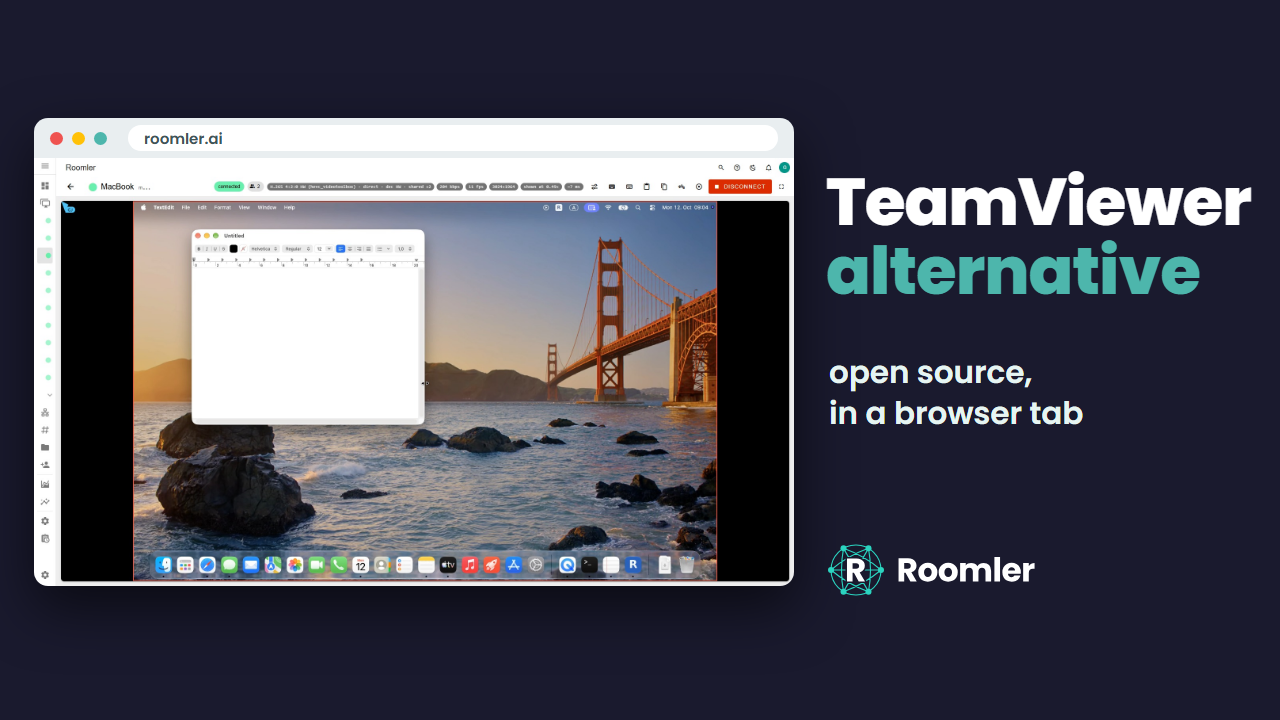
The first thing you see is a Windows laptop in a browser tab, and typing on it feels local: you press a key and the letter is there, the cursor keeps up, and the text stays sharp, even though every keystroke travels to that laptop and the picture travels back. On the side you sit at, nothing is installed. The browser tab is the whole viewer, which is about the lightest install we could think of.
🧰 Install the agent
The machine you want to control gets a small agent, written in Rust, and a token. The token comes from Devices → Enroll device, works once and expires after about ten minutes, so it is no good on a sticky note.
On Windows the friendliest way is the setup wizard. You pick what the machine should be (a background service, which matters later, at the lock screen), then the server, a name for the machine and the token, and the wizard does the rest. No terminal anywhere. If you prefer a terminal, one line in an administrator PowerShell does the same job, Linux and macOS use the same script through curl, and a headless Linux server adds a single flag. The Getting Started guide has every variant.
A Mac also wants two permissions, screen recording and accessibility, and it has to be logged in, though it can be locked. Apple asks nicely, and then it insists :)
Seconds after the agent starts, the machine shows up under Devices, online.
🔌 Connect from your browser
Connecting starts from the dashboard, and the screen opens right there in the tab. The MacBook, the Windows laptops and the Linux desktop all open the same way: you drag windows, you type, you work.
Behind the scenes the connection tries the local network first, then a direct internet path, then hole punching, and a relay only when nothing else gets through. One of the laptops in the video sits behind a corporate VPN, so its session goes through a relay, and it still feels smooth. The server only introduces the two ends and never carries the session, a relay only ever sees encrypted traffic, and a relayed session keeps trying to upgrade to a direct one.
Chrome, Edge and the other Chromium browsers give the best experience. Safari and Firefox work too, they just haven’t been tested as thoroughly yet.
🤝 Consent and unattended access
Whether somebody has to approve a session is a setting on each device. By default the machine asks the person sitting at it, unless you are connecting to your own, because asking yourself for permission gets old fast. The person at the machine sees who wants in and approves or denies, and a deny ends it right away, no hard feelings.
Automatic skips the prompt. It’s meant for your own servers and unattended workstations, because anyone allowed to view that device gets its screen with nobody in the loop. The middle mode asks first, and if nobody answers, it sends the owner a link they can approve from anywhere, the sofa included.
A server-side policy can’t loosen what the device itself is set to: the machine’s own setting is the floor. The consent docs have the details.
🔒 The lock screen
Windows draws its lock screen on a separate, secure desktop, and an ordinary program can neither see it nor type into it, which is rather the point. Installed as a system service, the agent can. In the video the test machine locks, and the browser keeps showing it like any other screen, so a machine that nobody is signed in to, or one somebody locked on the way out, is still one click away.
Without the system service, on a machine where you have no admin rights, the lock screen stays out of reach.
⚡ Speed and sharp text
Every frame of the screen goes through an encoder before it goes anywhere. On Windows and Linux the agent uses the GPU’s encoder, NVIDIA, Intel or AMD, for H.264, HEVC and AV1. At startup it encodes a test frame with each candidate and only offers what actually worked, and software sits underneath as the floor, so a session always opens, even on a machine whose GPU is mostly decorative.
Text is the other reason. Most video keeps a quarter of the colour detail, which is fine for cat videos and much less fine for a red error message. The 4:4:4 paths keep all of it: VP9 in software, and HEVC on NVIDIA cards.
A Mac uses Apple’s VideoToolbox for H.264 and HEVC, and its codec list tells you straight away that this MacBook has no AV1 encoder. Apple does like to do things its own way.
On the browser side, where the browser supports it, the viewer skips the video element’s buffer of about 80 ms and decodes on a low-latency path. If you like to tinker, the viewer settings let you pick the codec yourself.
📁 Files and the clipboard
Files and the clipboard travel inside the same encrypted peer-to-peer connection as the video. Drag a file onto the session window and it lands on the remote machine, and the remote files panel pulls one back the other way, so nobody has to email things to themselves anymore. Transfers resume after a dropped connection, and the server never holds the file.
Copied text syncs in both directions, and you can turn that off for a session. For an image, drag the file instead.
🕸️ The same agent is a private network
At the end of my last story I promised more about the extras, and this is the first one: the agent does one more job.
Every enrolled machine gets a private address on an encrypted mesh, and a name. Traffic goes directly between the machines when a path exists and through a relay when it doesn’t, and even then it keeps trying to get back to a direct path, quite stubbornly. So after a session you can still reach the machine’s services: a database, an internal web app, or SSH.
In the video SSH reaches a laptop by its name, while a check on that same laptop finds nothing listening on port 22. The agent answers the door itself.
🏠 Host all of it yourself
The server is open source too, and the self-hosted image runs the same code as the hosted service. On a fresh Ubuntu VM with an empty image cache, the two commands from the self-hosting guide pulled and started everything, and the server answered 25 seconds after the first command. That is less time than the kettle needs.
The clone and four secrets come first, which takes a few minutes more by hand. There is no licence key, no activation, and no device limit.
🥊 What TeamViewer does better
TeamViewer and AnyDesk have two decades of polish behind them, and clients on every platform, phones included. Roomler’s viewer is a browser tab, and there is no mobile app.
They also let you help a stranger who reads out an ID and a password. Roomler can’t do that yet, because both machines have to be in the same organization. Enterprise procurement, certifications and support contracts are theirs too. We have a GitHub repository and a lot of enthusiasm :)
So if your job is supporting people outside your organization, TeamViewer fits it today. The side-by-side comparison goes through the rest.
🥂 The happy end
My wife and a few of her colleagues were Roomler’s first users, and that Friday night is where it all started.
Roomler is open source: the server under the AGPL, the agent under the MPL. Try it at roomler.ai, or read the code on GitHub. And on Fridays, close your sessions gently.
If you liked what you have read and seen, then as they say:
Give the devil his due!
Hence I would appreciate if:
- Clap & share this post with your friends
- Star it on github
- Share your experience with Roomler (how it has benefited you)
- Report any issue found on github
Talk to you soon!