
Set up an exit node VPN on a machine you already own
- exit-nodes
- vpn
- network
- routing
- ssh
- tailscale
- tailscale-alternative
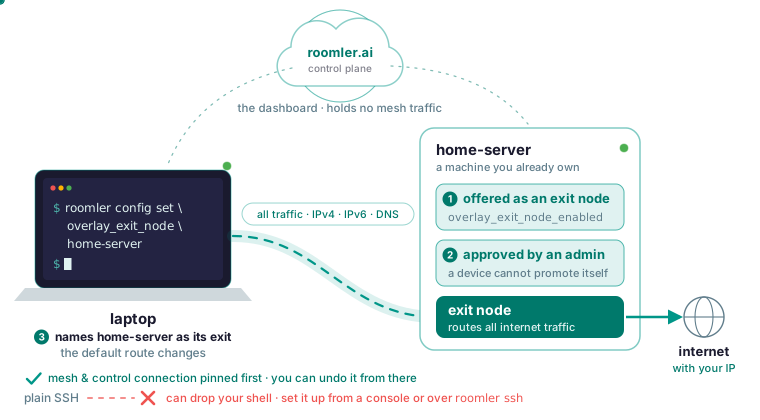
To make one machine you own the internet exit for another, you do three things in Roomler. Set the exit-node offer on the machine that should be the exit, have an administrator approve it in the dashboard, then name that machine on the client, and from then on all of the client’s traffic, IPv4, IPv6 and DNS included, leaves through it. Set it up from a console you cannot lose or over the mesh itself: an exit node reroutes the replies to inbound connections too, and a plain SSH session into the machine is one of those, so enabling it over plain SSH can cost you your shell.
What an exit node does to a device
An exit node is one of your own enrolled machines that another device sends its entire internet traffic through. On the client the default route changes, so every packet with no more specific route now heads for the exit, which makes this a bigger change than any single tunnel or subnet route. The subnet routers page puts the two tools side by side, and four rows tell you whether you want this at all.
| Property | Subnet router | Exit node |
|---|---|---|
| Routes | One specific network range | All internet traffic |
| Client-side effect | Extra routes | The default route changes |
| Risk if it goes down | You lose that network | You lose internet access on the client |
| Typical use | Reach the office LAN | Appear to be at the office |
If the office LAN or a NAS is all you need, use a subnet router, which the docs call the smaller, safer tool. An exit node is no substitute for it. Whether or not you call it a VPN, an exit node is the route-all-traffic arrangement a VPN subscription sells, on hardware you own and inside the mesh. Tailscale’s exit node is the same idea, and the compare table lists both as supported. Tailscale also has iOS and Android apps and years more production use, while Roomler’s agent is Windows, Linux and macOS.
What you need before you start
You need two machines, both enrolled and both on the mesh. Call the one that will carry the traffic home-server and the one that will send it laptop. On each, run the two commands from the private network page and check that the other machine is listed with a path next to it.
roomler status    # this machine: address, name, and how it is connected
roomler peers     # everything else on the mesh, and how each one is reached
Step 2 is an approval, so you need admin rights in the dashboard. You also need a way into home-server that is not a plain SSH session, for a reason explained below. Your router needs nothing opened; both ends connect outbound and meet in the middle. On the hosted service, the FAQ says paid plans add exit nodes. If you self-host, nothing is held back from your deployment.
On macOS the mesh and its routes live in the root half of the install, and the user half cannot do that job. A Mac with only the user half is absent from the peer list entirely, so it can neither offer an exit nor use one until you add the root half with --daemon-token. On a machine enrolled in several organizations, exit-node routing is host-global because there is one default route, so it follows the primary organization only. Offer and approve it in the primary; the exit-node role is primary-organization only.
Step 1: offer the machine as an exit node
On home-server, set the key overlay_exit_node_enabled, which the configuration reference describes as “Offer this machine as an exit node (an admin must still approve)”.
roomler config ls
roomler config set <key> <value>
Set it with the CLI instead of editing config.toml by hand, because the CLI writes atomically and keeps a previous copy. The reference lists where the file lives on each platform.
This key is device-owned: the dashboard can change a machine’s settings only if that machine has set remote_config_enabled locally, and no server-side action changes that, so an admin who flips the offer from the dashboard on a machine that has not opted in changes nothing. Most network settings apply live, but if home-server reports needs_restart the agent will not restart itself; restart it yourself, or on the next reboot.
Offering is not enough on its own: a device that merely offers to be an exit node is not one until an admin approves it.
Step 2: approve it in the dashboard
An administrator approves home-server as an exit node in the dashboard. Two parties are required on purpose: “route all your traffic through me” is exactly the claim a compromised device would like to make, so a device cannot promote itself. The security overview lists being an exit node in its default-deny table as off, and as needing a separate admin approval. The security model says the same thing from the server’s side: you do not have to trust the server with the ability to make a machine act as an exit node unless that machine opted in. Subnet routers follow the same pattern, advertise a range and then an admin approves it, because “I can reach 10.0.0.0/8, send me everything for it” is a large claim too. If home-server has the offer set and laptop still cannot route through it, this approval is what is missing.
Step 3: point a client at it
On laptop, set overlay_exit_node to home-server’s device name; the reference says the exit is chosen by name.
roomler config set <key> <value>From then on all of laptop’s traffic, IPv4, IPv6 and DNS, is routed through home-server. Check it in the order the CLI reference lists: laptop’s own state first, then the peer list for home-server and the path carrying it, then why the pair rides that path, meaning which tier of the ladder was eligible and whether a hold-down is overriding the ranking.
roomler status
roomler peers
roomler why <peer>
If the pair reads Relay, every byte of laptop’s internet traffic is now crossing a relay, which is slower and bandwidth-capped because someone else’s machine is forwarding your packets. Fix the path before you judge the feature. A relay is the right answer when both ends sit behind symmetric NAT or UDP is blocked outbound, so either accept it or choose an exit machine that has a direct path to the client. The last check is external: traffic now exits from a machine that is yours, with your IP, so a what-is-my-IP service opened on laptop should report home-server’s public address.
Why enabling it over plain SSH can drop your shell
An exit node reroutes replies to inbound connections too, and that includes the SSH session you may be using to configure it; if that session is not exempted, enabling the exit node can drop your own shell. Picture a cloud build box, build-box, whose internet traffic you want to send out through home-server and which you reach over plain SSH. You set overlay_exit_node on it and press enter. The replies that sshd on build-box sends you now follow its new default route, toward home-server instead of straight back to you, and your session stops answering.
The docs do not distinguish between the two machines here, so treat both the same: configure exit nodes from a console you cannot lose, or over the mesh itself, which is exempted. A console you cannot lose is a local keyboard, a hypervisor console or your provider’s serial console. A shell over the mesh is what Roomler’s own SSH gives you: it answers on the machine’s mesh address, intercepted below the socket layer, so it is the shell the docs are pointing you at. Open it with the ssh subcommand.
roomler ssh <device>It is off by default and stays off until the organization, your permission, the device policy and the machine’s own configuration all allow it, so set it up before you touch the exit node. And do not run an exit-node experiment on a production box that you reach only over plain SSH.
What stops it locking you out of the mesh itself
The mesh and the control connection are a different matter, and the exit-nodes page gives four guarantees. The paths that carry the mesh itself and the control connection are pinned first, as explicit exemptions, and if those exemptions cannot be installed the change is withheld entirely rather than half-applied. A guard re-asserts the routes continuously, because other VPN clients are known to reap routes out from underneath, and on restart a reconciler heals any leftover routing state from an unclean exit. The connection cascade applies the same rule to every change of routing, exit configuration or firewall state.
A change that cannot be made safe for the mesh and the control connection is not made, so the machine stays on the mesh and connected to the server, and you can undo it from there.
The guarantee stops there. If home-server itself goes down, laptop loses internet access, because its default route points at a machine that no longer answers. The fix is the clear command under turning it off below.
Some enterprise VPN clients reap routes belonging to other software, and one that fights hard enough will keep a pair relayed while it is connected. If laptop runs one and its pair with home-server sits on Relay while every surface reports normally, disconnect the VPN client; the pair converges to direct within a minute.
DNS follows the traffic
DNS queries are answered from the exit node’s vantage point, so name resolution matches where the traffic actually appears and does not leak to laptop’s local resolver. A service that gives different answers by region therefore resolves the way it would on home-server, and an internal name that only resolves from home-server’s network resolves on laptop too. On a machine in several organizations, DNS steering is host-global, because there is one resolver configuration, and it follows the primary organization just as the default route does.
What an exit node is good for, and what it is not
The exit-nodes page lists three uses: travelling, so you appear at your home or office connection from anywhere; egress control, forcing a fleet’s outbound traffic through one auditable point; and a known IP, so a machine with no fixed address can reach a service that allow-lists one.
It is not anonymity. Traffic exits from a machine that is yours, with your IP, and the docs call that the opposite of hiding. A VPN subscription does the reverse and puts you behind the provider’s address, so if that is what you need, the subscription is the right product. Nor is it a per-application setting: it is all of the device’s traffic, or none. And it does not replace a subnet router when one specific network is all you want to reach.
On privacy, the docs say two things. A relay forwards ciphertext it cannot read, so a relay in the path is a performance decision and never a privacy one. And the server holds no mesh traffic; whatever you send between machines is between them.
Turning it off
On laptop, clear the setting; the split-default routes are withdrawn and normal routing returns.
roomler config clear <key>The key is overlay_exit_node, the one you set in step 3. If a machine ever comes back from a hard shutdown with stale routing, the boot reconciler clears it, so there is nothing for you to do by hand. To stop home-server offering itself, clear overlay_exit_node_enabled on home-server with the same command.
Start with two machines on one mesh
An exit node is one setting on top of a mesh. The quickstart’s last step, joining the machine to the private network, ends with the same two commands this article used.
roomler status          # this machine: address, name, carrier
roomler peers           # everything else on the mesh, and how it is reached
The mesh is part of the agent you already installed: on Windows and Linux it comes up with the agent, and on macOS it needs the root half. Read the exit-nodes page next if you want everything routed, or subnet routers if you want one range. Put two of your machines on one private mesh in a few minutes with the quickstart.