
Remote desktop file transfer for large files, and where they land
- remote-desktop
- file-transfer
- ssh
- tunnels
- troubleshooting
- teamviewer-alternative
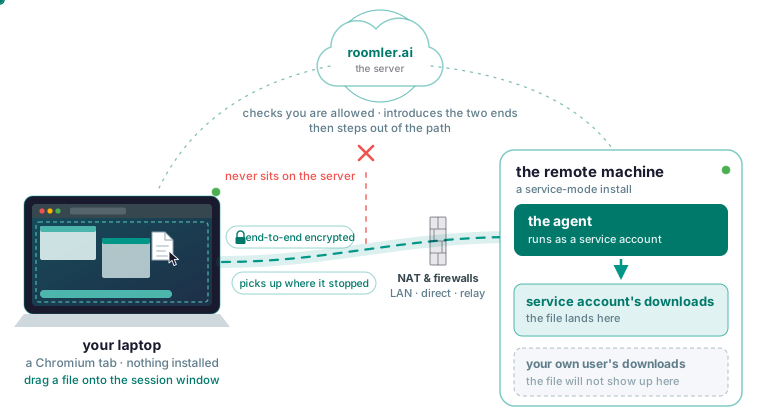
To send a large file to a remote machine during a Roomler session, drag it onto the session window; to bring one back, open the transfer panel in the session toolbar. The file rides the same encrypted peer-to-peer channel as the video, so the server never holds it. A transfer that is interrupted picks up where it stopped. On the far end, the file lands in the download location of the account the agent runs as, which on a service-mode install is a service account, so it will not show up in your own user’s download folder.
Open the session and drag the file in
Open Devices, pick the machine and click View screen. By default an attended machine asks the person sitting at it before handing over the screen; set your own servers to Automatic and nobody has to approve. If nobody answers, the prompt times out, the session is refused, and you are told the reason was a timeout, which is reported separately from a denial.
Drag a file onto the session window to send it to the remote machine, or open the transfer panel in the session toolbar to pull one back, as the files and clipboard page describes. Both directions work within one session, each transfer shows its own progress, and a transfer continues while you keep working in the session.
The controlling side is a current Chromium-based browser with nothing installed. Firefox and Safari can sign in for chat and calls, and the remote-desktop viewer targets Chromium. That rules out a phone as the controller: RustDesk ships native iOS and Android viewers, TeamViewer and AnyDesk have mobile clients, and Roomler has no mobile viewer.
The file never sits on the server
The server checks that you are allowed, introduces the two ends to each other, and then steps out of the path. Clipboard contents and file transfers travel on their own channels inside the same encrypted peer-to-peer connection as the video, with no detour through the server.
The two ends measure their options in order: the same LAN, a direct internet path, a hole-punched path through NAT, then a relay, with TLS on port 443 as the floor where every UDP path is blocked. Every rung is encrypted end to end, so a relay hop slows the transfer and nothing more: the relay forwards ciphertext it cannot decrypt.
What the server sees lists what it does hold: accounts, device rows, permissions, audit records of who asked for what and when, presence, and the chat side of the product, including messages and files uploaded to rooms. It holds no session video, no keystrokes, no tunnel contents, no SSH bytes and no mesh traffic.
Room uploads and session transfers are different features. A file dropped into a chat room is stored in object storage on the server. A file dragged into a remote session is never stored by the server. If you self-host, the question goes away, because the server is your own machine.
Large files: an interrupted transfer picks up where it stopped
The documentation publishes no size cap for a transfer. Each transfer shows its own progress, and one that is interrupted picks up where it stopped, so a connection that drops partway through a multi-gigabyte copy does not send you back to the start.
A path change does not interrupt a long transfer either: when a better path appears, the new one is established before the old one is torn down, and when a direct path is lost the session falls back to a relay and stays up.
Copying a large file through the RDP clipboard has a documented size ceiling, and a copy that exceeds it fails with no error message; Microsoft’s knowledge base article on clipboard redirection describes the failure. The usual advice is to zip, split or batch the file under the ceiling, or to fall back to cloud storage or a USB stick. RDP does have one thing Roomler’s documented transfer lacks: drive redirection presents your local disk inside the remote session, where Roomler’s docs describe only a drag onto the session window and a pull-back from the toolbar panel.
The file disappeared: it landed in the agent account’s download location
Files land in the remote machine’s download location for the account the agent runs as. Where the agent runs as a system service, transferred files arrive owned by that service account, so a file that looks missing is usually in the service account’s location while you search the desktop user’s. The service mode decides which account that is.
Windows has three. The system service mode runs as LocalSystem as a Windows service, and it is the only one reachable at the lock screen and before anyone logs on. The attended mode is a Windows service without SystemContext, reachable while a user is logged in. The per-user mode is a scheduled task at logon under your own account. A file sent to a system-service install therefore belongs to LocalSystem.
On Linux, the --system flag installs a root systemd system unit, and the default installs a per-user unit that runs as you. A file sent to a --system server arrives as root.
On macOS the user half of the agent runs as you inside your GUI session and does capture, input and clipboard, so expect a transfer to land under the logged-in user.
roomler status reports the mode this machine runs in, alongside its id, version and mesh address.
roomler statusPer-user mode puts files under your own account. The machine is then reachable only while you are logged in. The Windows system service mode is the one that gets you back into a machine sitting at the lock screen. To change mode on Windows, re-run the installer with a different -Role; the Windows install page lists the role names.
Slow transfer: read the connection indicator before anything else
The session window shows a LAN / Direct / Relay indicator. Relay means higher latency and capped bandwidth, because someone else’s machine is forwarding your packets. The same two machines on a direct path are typically an order of magnitude better. A relayed pair keeps trying to upgrade to a direct path in the background, so one that stays on Relay is worth investigating. roomler peers shows the same path per peer.
roomler peersCannot connect lists the causes in the order they occur.
- A VPN client on one end is the most common cause by a wide margin: corporate VPN clients capture local network ranges, including the ones private meshes use, so two machines on the same physical network end up relayed while every surface reports normally. Disconnect the VPN on one end and watch the pair converge to direct.
- Symmetric NAT on both ends means hole-punching cannot work, and a relay is the correct answer there.
- UDP blocked outbound keeps the mesh on the TLS 443 floor, which works and will not be direct.
- One end that just moved networks re-converges on its own.
roomler why names which tier was eligible, what it scored and whether a hold-down is overriding the ranking; the CLI reference covers the rest.
roomler why <peer>If the indicator reads LAN or Direct and the session is still slow, the path is fine and the next stop is codecs and performance.
Clipboard sync carries text only
Clipboard sync copies text in both directions while the session is open. Copying an image or a file object through the clipboard is not the transfer path, so drag the file onto the session window instead. Selecting a file, pressing Ctrl+C on one side and Ctrl+V on the other moves nothing.
The clipboard is shared for as long as the session lasts, so anything you copy on either machine becomes available to the other. Take care copying a password on the machine you are controlling from, because it reaches the remote machine’s clipboard too. Clipboard sync can be turned off per session.
Scripted or repeated moves: scp and sftp over Roomler SSH
For scripted or repeated movement of files, a session is the wrong tool. scp and sftp work over Roomler SSH. The target runs no sshd, binds no port and needs no firewall rule, and that includes Windows, because the agent intercepts SSH traffic addressed to the machine’s mesh address below the operating system’s socket layer. These transfers run as the SSH session’s own account, the opposite of the drag-and-drop path, so the service-account landing problem does not arise. The device decides which accounts are permitted.
The documentation’s own example reaches a node by name.
ssh dev-boxOr let the CLI resolve the account by policy and verify the host key for you.
roomler ssh <device>SSH is off by default behind four gates, each owned by a different party, and any one of them refuses. The organization enables remote SSH, separately from remote command execution; the user holds the SSH permission, which the default administrator role lacks; the device has an SSH policy allowing it; and the machine’s own configuration enables SSH with an authorised key list.
The machine-side keys are in the configuration reference: ssh_enabled is off by default, ssh_port is 2222 so an existing sshd keeps serving, ssh_authorized_keys is empty and empty means nobody, and ssh_account_mode is unset and unset means authenticate, then run nothing. Read and set them with the CLI.
roomler config ls
roomler config set <key> <value>
SSH settings apply on restart, and the agent will not restart itself, so restart it after changing them. On Windows a caveat undoes part of that account advantage: SFTP against a Windows target works when the SSH session runs as the daemon’s own account, and running it as the logged-in console user is not yet supported there. Remote forwarding with -R is deliberately not implemented, because it would make the machine bind a listening socket. Session contents are never recorded.
Or forward a file service’s port with a tunnel
A tunnel forwards a port on the machine you sit at to a service on a remote machine; the service does not need to know Roomler exists, it only has to be reachable from the machine running the agent. The files page’s second option is to forward a file service’s port and use whatever client you already have. The documentation’s example forwards a database port.
roomler forward --agent <agent-id> --local 5432 --remote localhost:5432Put your file service’s port in place of 5432 in both flags and point your usual client at localhost. The --agent flag takes the hex device id from the device’s page in the dashboard; a display name fails in a way that looks like the device is missing. The command stays in the foreground and tears the forward down on Ctrl-C; add --daemon to hand it to the local agent, then manage it from the CLI.
roomler flows          # every flow the local daemon is running
roomler kill <flow-id> # stop one
For a forward you always want, declare a route; the agent reconciles declared routes on every start.
roomler route add --agent <agent-id> --local 5432 --remote localhost:5432Every forward is checked against the organization’s tunnel policy before it is established; a tunnel is an access-control decision. The machine you sit at can run the tunnel-only CLI instead of the full agent. If a tunnel drops it re-establishes when the path recovers; if the peer is not reachable at all, the tunnel is a symptom, and the place to start is cannot connect.
The documentation’s rule for choosing: a tunnel for one known port to one known service, SSH for a shell plus file transfer on a machine running no sshd.
Try it on one machine
The free plan covers three devices, with remote desktop, the private network and tunnels included. The quickstart has the one-line installer for Windows, macOS and Linux, and each platform page covers the service modes above. Install Roomler on one machine and open its desktop from a browser tab: the quickstart takes you through it.