
Remote desktop black screen: which permission or session is missing
- remote-desktop
- troubleshooting
- black-screen
- permissions
- windows
- macos
- linux
- teamviewer-alternative
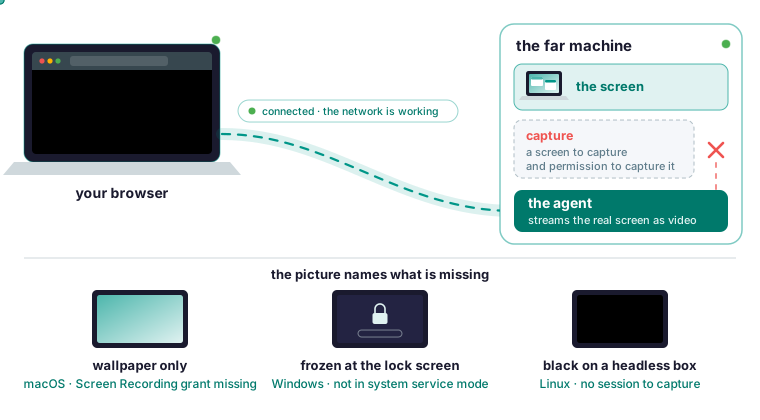
A connected session with no picture is a capture problem
If the session connects and then shows a black screen, a bare wallpaper or a frame stuck at the lock screen, the network is working and the problem is capture on the far machine. The picture names what is missing. Wallpaper with nothing on it means the Mac has not granted Screen Recording to the agent, a frame frozen at the lock screen means the Windows agent is in the wrong service mode, and black on a headless Linux box means there is no session to capture. No operating system reports any of this as an error, so the picture is the only diagnostic the OS will give you.
Most of what ranks for this symptom is about Microsoft’s RDP client: turn off persistent bitmap caching, step the resolution down a notch, press Ctrl+Alt+End to get at Task Manager, update the display driver, restart Remote Desktop Services. That is sound advice for RDP and useless for a capture-based tool. An RDP session is its own logon session, drawn for the client, so a black screen there is a rendering or profile-load problem on a desktop that exists. RDP also has one advantage no capture-based tool can claim: it never needs a logged-in console session or a permission to capture one. TeamViewer, RustDesk, AnyDesk and Roomler stream the target’s real screen as video, which depends on two things that list never touches: a screen to capture, and permission to capture it. Find your symptom in the table, then go to that operating system.
Match what you see to the cause
The table is the one on the black screen page, and every diagnosis below starts from it.
| You see | Almost always |
|---|---|
| Wallpaper, no windows or menu bar | The macOS Screen Recording grant is missing |
| Screen fine, clicks and keys do nothing | The macOS Accessibility grant is missing, or a Linux keyboard-layout problem |
| Frozen at a lock screen or UAC prompt | The Windows agent is not in system service mode |
| Completely black, a reconnect fixes it | A capture handle that came up empty |
| Black on a headless Linux box | No session to capture |
Find your row and go to that section. The per-OS permissions page has the same table and the detail behind each row.
On a Mac, one check works before you connect at all. The agent probes both grants at startup and reports the result to the server, so the device list shows “No screen access” or “No input access” for that machine.
One picture gets mistaken for a black screen and belongs on a different page: the device is green in the list, and View screen says it is unavailable. The list status is heartbeat-based while a session needs the live socket, so a half-open connection shows green and still refuses; recent agents detect this and reconnect within about two minutes. That is a refused session, and device offline covers it.
macOS: wallpaper only means the Screen Recording grant
A Mac needs two grants, both under System Settings, Privacy & Security, both for Roomler Daemon. Screen & System Audio Recording is the one behind the wallpaper: without it, capture returns the desktop picture and nothing else. Accessibility covers input: without it, keys and clicks are silently dropped. macOS reports neither as an error, and there is no error message anywhere, so the first sign is a desktop with no windows on it.
Enable both, then restart the user half:
launchctl kickstart -k gui/$(id -u)/com.roomler.agentYou do not have to hunt for the right pane: the menu-bar app names whichever grant is missing and opens it.
The grant belongs to the user half because a root process in session 0 has no WindowServer, so capture and input injection can only run inside your GUI login session. The same fact means a Mac has to be logged in to be reachable as a desktop at all, though it may be locked.
If the Mac worked, then went back to wallpaper after an agent update and stopped taking clicks, the update is the cause. A grant is bound to a specific signed bundle identity, and an update that changes that identity voids both grants. The installer tells you when this has happened. Re-enable both toggles and run the same launchctl line again.
Windows: frozen at the lock screen means the wrong service mode
Windows needs no user grant for capture or input, so there is no toggle to find. The service mode you installed with decides which desktop the agent can see. The lock screen, UAC prompts and the pre-logon screen live on a separate secure desktop that only a system-mode service can see. The Windows install page offers three modes.
| Mode | Runs as | Can see |
|---|---|---|
| Machine, system | A Windows service under LocalSystem | Everything, including the lock screen, UAC prompts and the screen before anyone logs in |
| Machine, attended | A Windows service without SystemContext | The logged-in desktop, and never the secure desktop |
| Per user | A scheduled task at logon, under your own account | Your own session, and nothing before you log in |
The classic symptom follows from the table. The session works until the remote machine locks or shows a UAC prompt, then freezes on the last frame, because the desktop that just appeared is one the agent cannot see. Re-run the installer with the system role from an Administrator PowerShell:
& ([scriptblock]::Create((irm https://roomler.ai/api/setup/install.ps1))) -Role daemon-system -Token <token> -Server https://roomler.aiBoth machine-wide modes register a Windows service, which needs administrator rights, and from a normal prompt the install gets partway through before it fails.
There is a second, rarer case. A capture handle bound during the transition between locked and unlocked can return empty frames indefinitely. The agent detects a stream that has delivered nothing and rebuilds it, so a permanently black screen that a reconnect fixed was almost certainly this, and no permission is missing.
To confirm the service is up, run both of these on the machine:
Get-Service Roomler
roomler status
The first shows the service and whether it is running; the second reports the agent’s version, organization, connection and mesh address. It also reports the capture state, covered below.
Ubuntu and other Linux: no session, no portal, or no display
The troubleshooting page checks three things in order.
First, check that there is a session to capture. A root system service, which is what the --system flag installs, has no logged-in session. On a desktop, use the per-user unit, which shares the session you are logged into. Do not add a per-user install beside the system one, because one daemon per machine is the rule. Remove the system install first:
curl -fsSL https://roomler.ai/api/setup/install.sh | sh -s -- --uninstallThat stops the service and removes the packages, the files and the config, but the device row in the dashboard stays behind, so remove the row as well to revoke the old credential. Then mint a fresh token and run the desktop line from the Linux install page:
curl -fsSL https://roomler.ai/api/setup/install.sh | sh -s -- \
  --role daemon --token <token> --server https://roomler.ai --name "$(hostname)"
Second, on GNOME under Wayland, check that the desktop portal is running. It is started on demand, and if nothing has ever triggered it the agent finds no capture source at all. Starting it is not always enough, because the portal front-end caches its backend choice at startup and can need a restart after the backend appears. The practical symptom is a machine with every package installed that still reports no capture source.
Third, a headless machine has nothing to capture until you give it a display. Enable virtual-display mode in the device’s configuration, and View screen drops you into a live console instead of failing. Set it in the configuration rather than through an environment variable, so it survives a reboot and applies to a daemon started outside systemd.
Input has its own trap. Synthetic key events map through the active keyboard layout, and a key that is not on the detected layout types nothing and reports success, which looks like some characters working and others not. Check the far machine’s keyboard layout before you suspect the connection. Both X11 and Wayland are supported, and which one applies is detected at session time.
Check the agent with the form that matches the install:
roomler status     # per-user install
sudo roomler status # system install
On a system install, do not trust systemctl is-active on its own: a healthy daemon can be one systemd does not own, and the command then reads inactive while the device is online and answering, so check pgrep -x roomlerd and roomler peers first. A restart on that reading can take a working machine down.
When it is not a permission
Three things produce a black picture with no permission missing.
The far end may be showing a screensaver or a blanked display. Move the mouse in the session. For a long session, the keep busy control lets a controller with input keep the pointer moving in a pattern, so the screensaver, the idle lock and Away never come. Any real input at the machine pauses it, and it is on by default unless the machine or the organization turns it off.
A machine with no display attached and no virtual display configured is the headless case again. Enable virtual-display mode in the device’s configuration.
A GPU driver that fell over can also leave you with nothing. At startup the agent encodes a real frame with each candidate encoder and advertises only what worked, because a codec reported as available on the strength of what the hardware ought to support is how you get a session that negotiates a format and then produces nothing. That probe runs in a separate process on purpose, so a driver that faults takes down the probe and leaves the agent running, though the machine may still need a reboot.
Confirm from the far side instead of guessing
Everything above can be confirmed from the far machine with one command.
roomler statusThe agent reports its capture state, so you can tell no permission from no display from working with a screen that really is black, without guessing. The third case sends you back to the previous section.
On a Mac the two halves listen on different local sockets: plain roomler status reaches the user half and sudo roomler status reaches the root half, so a reply that the daemon is not running usually means you asked the wrong half. Capture lives in the user half, so that is the half to ask about a black screen. Try the command with and without sudo before concluding anything is broken.
For a report, take the log tail as well. For a Linux per-user unit:
journalctl --user -u roomler -n 200 --no-pagerA report that can be acted on says what you expected, what happened instead, the operating system and version, hosted or self-hosted, and whether it ever worked and what changed, and it includes the status output from the machine. The last item is the one most often left out and most often decisive. Read the redaction rules in collecting diagnostics before you paste a log, because the config and some log lines can hold a credential. The FAQ says where to file it.
Common questions
Why does remote desktop show a black screen after login on Windows 11?
With a capture-based tool, a session that works and then freezes when the machine locks or shows a UAC prompt means the agent is not running as a system service. Only system mode can see the secure desktop, so re-install with the system role.
Why does the remote Mac show only the wallpaper?
The Screen Recording grant for Roomler Daemon is missing, and macOS reports no error. Enable it under Privacy & Security, then restart the user half with the launchctl line above.
Why is the remote desktop black on Ubuntu?
Either there is no session to capture, which covers a root system service on a desktop and a headless box without virtual-display mode, or, on GNOME under Wayland, the desktop portal was never started.
Can I reach a machine nobody is logged into?
Yes on Windows in system service mode, and yes on Linux with virtual-display mode on a headless box. No on macOS, where capture needs a GUI login session, so the Mac must be logged in, though it may be locked.
Start from an install that can see the screen
Before the first session, pick the mode that matches how you will reach the machine. On Windows that is the system service mode if you will ever need the lock screen. A Linux desktop wants the default per-user unit. A Mac needs its two permissions granted before you connect. Then click the device and View screen. Install Roomler on one machine and open its desktop from a browser tab, starting with the quickstart.