
Why remote desktop is slow, and the one check to run first
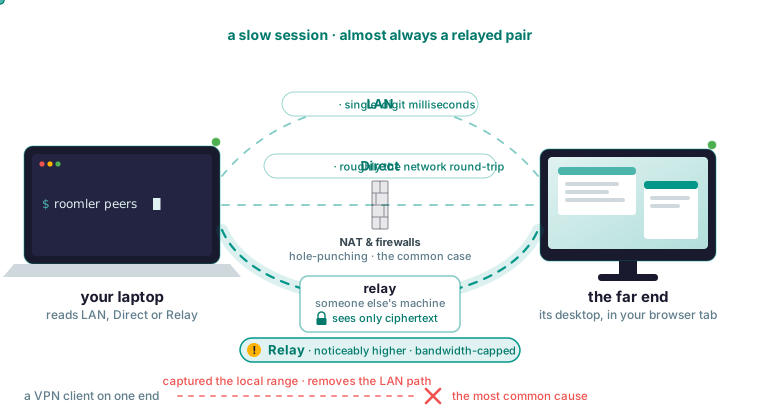
A sluggish remote desktop session is almost always a relayed pair, and one look tells you. Open the session and read its connection indicator, or run roomler peers on either machine; both report the same path. If it says Relay, the most common cause is a VPN client on one end that captured the local network range, and the test for it takes a minute.
Run one check before you touch a setting
roomler peersThe three verdicts, in the order the troubleshooting page gives them:
| It reads | Verdict |
|---|---|
| LAN or Direct | The path is fine. If the session still drags, skip to the encoder section below. |
| Relay | Found it. Keep reading. |
| Nothing at all | The peer is not reachable. Check that the device is online before anything else. |
An empty list is not always a dead machine. A device can be connected to the control plane with no mesh at all, and roomler status prints both facts on one line. An organization with the mesh switched off is still named in the peer list. A Mac installed with only the user half never joins the mesh and is absent from the list entirely. Remote desktop works without the mesh, so the session window’s indicator is the check that always applies.
roomler status    # this machine: version, organization, connection, mesh address
roomler peers     # every peer, and how each one is currently reached
The usual advice tunes the stream: lower the colour depth, switch off visual effects, raise the client’s process priority, go wired. None of it tells you which path the stream is on, and when the indicator reads Relay, the path is the problem.
What LAN, Direct and Relay mean for latency
Two machines try a ladder of paths and take the best one that works, chosen from measurements of what connects. Same LAN comes first, then a direct path across the internet, then hole-punching through NAT on both sides, which is the common case and works far more often than people expect. Below that sits a relay, a machine that only ever sees ciphertext, and under everything the floor: with every UDP path blocked, the mesh still runs over TLS on port 443.
What each reading should feel like:
| Path | Round-trip input latency |
|---|---|
| Same LAN | Single-digit milliseconds |
| Direct across the internet | Roughly the network round-trip, plus encode and decode |
| Relayed | Noticeably higher, and bandwidth-capped |
A relay is slower because someone else’s machine is forwarding your packets, and the same two machines on a direct path are typically an order of magnitude better. It is also a stage: the pair keeps re-attempting a direct path, permanently, and the upgrade is make-before-break, so a live session is not interrupted when the path improves. A pair that stays relayed is what the next two sections diagnose. A relay forwards ciphertext it cannot decrypt, so a relayed session is slower than a direct one and exactly as private.
The VPN client that captured your local network
This is the most common cause by a wide margin. Corporate VPN clients capture local network ranges, including the ranges private meshes use, and reroute or drop that traffic. Two machines on the same physical network then end up on a relay while every surface reports normally, which is why it can go unnoticed for days. The usual advice treats a VPN as a slower pipe; a client that captures the local range removes the LAN path altogether.
The tell is two machines on the same physical network both showing Relay, with a VPN client running on one of them. Disconnect the VPN on that end, run the command again, and watch the pair converge to Direct or LAN; if it does, that was the whole problem.
roomler peersSome enterprise VPN clients go further and reap routes that belong to other software. Roomler’s route guards re-assert continuously, but a client that fights hard enough keeps the pair relayed for as long as it is connected. On a machine you administer, the fix is to run the session with that VPN client disconnected. For the reason behind a relay, ask why: the peers command says a pair is relayed, and why says which tier was eligible, what it scored, and whether a hold-down is overriding the ranking, as the CLI reference puts it.
roomler why <peer>Symmetric NAT, blocked UDP, and a machine that just moved
The docs list three more causes in the order they occur in the field. First, symmetric NAT: when both ends sit behind NAT that assigns a different external port per destination, hole-punching cannot work and a relay is the correct outcome. It is common on some mobile networks and a few corporate firewalls. The netcheck command reports the NAT class as measured, with reachability, the relay verdict and floor health.
roomler netcheck                       # what this machine can actually reach
roomler peers                          # which path each peer is on
A fleet with many relayed pairs can run an organization relay on a machine you own; the traffic stays on your hardware, and it measurably outperforms the shared path. It sits behind an organization mode that is off by default, an access rule, a per-device approval needing two permissions, and the machine’s own opt-in. The opt-in is relay_server_enabled in that machine’s config. That machine listens on UDP 3478, an inbound port on that one machine only. A relay engages on a path change, so switching it on leaves an already-healthy pair where it is; restart one of the two machines to provoke the decision when you test.
Second, UDP blocked outbound: where only TCP 443 is permitted, the mesh keeps working on the TLS floor and will never be direct there, and the signature is a machine that is Direct from everywhere except one office. What a restrictive network allows decides the path:
| Outbound | Result |
|---|---|
| 443 only | Everything works, and every path is relayed |
| UDP permitted | Direct paths become possible |
| 443 blocked | Nothing works; this is the minimum |
If you can ask the network owner for one thing, ask for outbound UDP. No machine needs an inbound port or a router forward, so leave those out of the request.
Third, one end just moved: roaming between networks means a period of re-convergence, and it should resolve on its own within a minute or so. One end can converge before the other, so one machine can list the peer while the peer does not list it back; that is a transitional state, and it resolves, sometimes slower than you would expect.
When the path is direct and it is still slow
Only now touch the encoder. Work down the list in order; it is sorted by how often each item is the answer.
- Check what the far end is doing. A machine pinned at 100% CPU encodes slowly whichever encoder it picked.
- Set the session priority to Responsiveness, which trades sharpness while things move for input latency. Balanced is the default, and Clarity trades latency for detail, so a session left on Clarity to read small text feels laggy the moment you drag a window.
- Reduce the resolution at the far end. A 4K desktop is four times the pixels of 1080p, and on a software encoder that is the whole budget.
- On Windows or Linux, force the hardware encoder, in case the startup probe fell back to software for a reason you want to know about.
roomlerd run --encoder hardware   # try hardware first
roomlerd run --encoder software   # skip hardware entirely
The same choice is the encoder_preference key, with the values auto, hardware or software; a command-line flag beats an environment variable, which beats the config file, which beats the default. Set it through the CLI, which writes the file atomically and keeps a previous copy.
roomler config ls
roomler config set <key> <value>
At startup the agent encodes an actual frame with each candidate encoder and advertises only what worked. A codec is offered only when both ends can handle it, so a session negotiates down to something both ends support. On macOS, encoding is software-only, because VideoToolbox is not wired up. That works well for normal desktop use and limits high-resolution, high-motion content, so on a Mac target the resolution step is the lever, and forcing hardware has nothing to select.
Two expected behaviours look like faults. A still screen sharpens itself after motion stops, because the encoder spends its budget on detail once nothing moves. A monitor switch renegotiates the stream, so expect a brief blur while the first full frame arrives. If a LAN pair still feels slow after all of this, something is wrong; report it with the diagnostics below.
Use a Chromium browser on the viewing side
The viewing side installs nothing, so the browser is the only component you can change there. Where the browser supports it, the viewer uses a low-latency decode path that bypasses the video element’s built-in buffering; it checks for WebCodecs and encoded transforms, and falls back to the video element where they are missing. A normal video element enforces a jitter buffer of roughly 80 ms regardless of what you ask for, which is a large share of a remote-control latency budget. Chromium browsers (Chrome, Edge and other Chromium builds) are where that path has had the most testing, so they give the best experience; Safari and Firefox run the viewer too, with less testing so far.
If it will not connect at all
Sometimes the slow connection is no connection. Five checks, in the docs’ order:
- The target must be online. Online means the server holds a live socket to the agent, Stale means it is heartbeating with no live socket and self-heals in about two minutes, and Offline means no heartbeat at all.
- You need permission, and a refusal for permission reasons comes back as a refusal with its own message, so read it.
- The far end may be waiting for consent, and the machine may have no way to ask.
- Remote control, remote commands and SSH each have their own organization-level switch.
- When network ACLs are enforcing, a peer you may not reach is missing from your peer list altogether.
The device list is heartbeat-based while a session needs the live socket, so a half-open connection can show green and still refuse a session. Recent agents detect this and reconnect within about two minutes; if it persists, restart the agent.
Still relayed: gather both ends before you ask for help
A connectivity problem is a property of the pair, so one side’s output is half the picture, and disagreement between the two ends is itself a diagnosis. The minimum from each machine:
roomler status
roomler peers
roomler --version
Then the paired diagnostic, which reports what each end sees:
roomler diag pair <other-device>diag and diagnose are different tools: diagnose probes MTU, candidates and relay status from the machine you run it on, while diag runs a canned, OS-appropriate evidence set on the target devices (adapters, routes, firewall posture, carrier state, recent warnings), which is what a why-is-this-pair-relayed question needs.
roomler diag host                  # evidence bundle from one device
roomler diagnose --agent <id>      # probe MTU, candidates and relay status from HERE
Diagnostics live in the CLI, so a diag subcommand you do not have means update the CLI. The file config.toml holds the agent token and never goes into a report; machine names, mesh addresses and versions are usually the useful part. Open an issue following the docs’ report checklist, with what you expected, what happened and the exact message, the status output from both ends, the operating system on each end, whether you are on the hosted service or self-hosted, and whether it ever worked and what changed; that last item is the one most often omitted and most often decisive.
Install Roomler on one machine and open its desktop from a browser tab.