
Access a remote desktop from a browser with nothing installed
- remote-desktop
- browser
- chromium
- unattended-access
- windows
- macos
- linux
- teamviewer-alternative
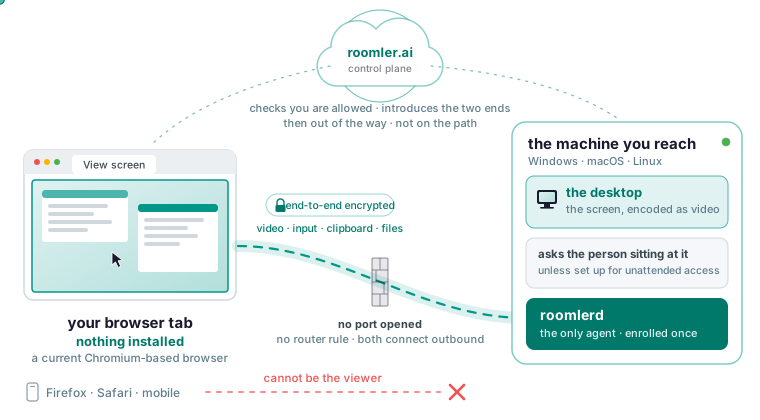
Yes, you can open and control a Windows, macOS or Linux desktop from an ordinary browser tab with nothing installed on the computer you are sitting at, because only the machine you reach runs an agent. You enroll that machine once, then click View screen on its row. Two caveats apply. The viewer must be a current Chromium-based browser on a desktop operating system, which rules out Firefox and Safari for the screen itself. And a slow session is almost always a relayed path between the two machines, which the session window reports, and almost never the browser.
What “from a browser” means in most guides, and what it means here
Most guides describe one of two setups. The first is Microsoft’s Remote Desktop web client, which needs Remote Desktop Services with RD Web Access and an RD Gateway on Windows Server, plus a Windows target. In return you get a native Windows session with RemoteApp. The second is a gateway such as Apache Guacamole, where a server you run terminates RDP or VNC and therefore sees the whole session. In exchange it reaches devices that will never run an agent, a point the MeshCentral comparison concedes too.
The remote desktop overview describes Roomler’s shape in four steps. You click View screen, the server checks that you are allowed and introduces the two ends, and the machine asks whoever is sitting at it unless it is set up for unattended access. The two ends then negotiate the fastest path that works, and video, input, clipboard and file transfer flow over that path with the server out of the way. Only the machine you reach runs an agent, so the viewer can be a client’s laptop or a borrowed computer.
Which browsers can be the viewer
The viewing side needs a current Chromium-based browser and nothing installed. Chrome and Edge are the familiar examples. Firefox and Safari can sign in, use chat and the dashboard, and join calls, but the remote-desktop viewer targets Chromium.
There is no mobile viewer, so an iPhone, an iPad or an Android phone cannot drive a desktop. The TeamViewer comparison lists the same gap. Settle this before the setup, so you do not install an agent and then open Safari.
Why browser viewers lag, and why this one is Chromium only
A normal video element enforces a jitter buffer of roughly 80 ms regardless of what the page asks for, which is a large share of a remote-control latency budget. Roomler’s viewer decodes frames directly and paints them, skipping that buffer; this low-latency decode path is a Chromium capability, and it is the whole reason for the browser restriction.
The target encodes the screen as video, and the codecs and performance page lists the options. H.264 is the floor that decodes everywhere, HEVC needs support on both ends, AV1 needs the newest hardware, and VP9 is used for the 4:4:4 path where crisp text matters more than motion. A codec is offered only when both ends can handle it. The agent picks the encoder by encoding an actual frame with each candidate at startup and advertising only what worked, because an encoder that is reported but broken gives you a session that negotiates a format and then shows nothing.
One limit before you enroll a Mac: encoding is software only on Apple Silicon, because VideoToolbox is not wired up. That is fine for ordinary desktop work and a limit you will hit with high-resolution, high-motion content.
Enroll the machine you want to reach
Everything below happens on the machine you want to reach.
- Create a workspace at roomler.ai and name the organization. The free plan covers three devices, so nothing here needs a card.
- Mint a token on the Devices page with Enroll device. It works once and stays valid for about ten minutes. Anyone holding it can join a machine to your organization, so paste it into a terminal, never into a chat room.
- Install the agent with the one-line installer for the machine’s operating system.
On Windows, copy the one-line installer from the Windows install page and run it in an Administrator PowerShell with -Role daemon-system. The daemon-machine and daemon-user roles also exist, and the lock-screen section below explains the choice. A non-elevated prompt fails partway through, because registering the service needs administrator rights.
On a Mac, copy the screen-sharing-only line from the macOS install page; it gives you one device row. Then open System Settings, Privacy & Security, and enable Roomler Daemon under Screen & System Audio Recording and under Accessibility, because macOS reports no error when a grant is missing: the stream shows wallpaper with no windows, or clicks and keys are silently dropped. Restart the user half afterwards:
launchctl kickstart -k gui/$(id -u)/com.roomler.agentOn a Linux desktop, copy the per-user line from the Linux install page, because screen capture needs a logged-in session. On a headless server, the same page adds --system for a root systemd service.
- Watch the Devices page. Online means the server holds a live socket to the agent, Stale means it is heartbeating without one and self-heals in about two minutes, and Offline means no heartbeat. If the machine never appears, an earlier attempt consumed the token, so mint another. Re-running the installer on a machine that is already enrolled reuses its device row.
- Confirm from the machine itself:
roomler statusA healthy machine reports its version, its organization and that its control connection is connected.
Open the screen from a browser tab
Open Devices, pick the machine and click View screen. By default the machine asks the person sitting at it, and the prompt names who is asking and what for. If they deny it, the session ends and you are told it was a refusal. If nobody answers within the time limit, you are told it was a timeout instead, so you know whether a colleague said no or never saw the prompt.
For your own machines, set the device’s consent mode to Automatic, the only value that skips the prompt; a device with no setting at all asks. The switch is per device on purpose. A machine that is sometimes attended can ask first and then fall back to the device owner by email or push.
Several displays each get their own view, switched from the toolbar with a brief blur while the stream renegotiates. The priority control chooses between Responsiveness, Balanced and Clarity, and a screen you stop touching sharpens itself after a moment. Ctrl+Alt+Del, and on a Mac most Cmd combinations, are intercepted by the operating system you are sitting at before the browser sees them, so send those with the toolbar’s key-send control. Clipboard text syncs both ways while the session lasts and can be turned off per session, so think before you copy a password on the controlling machine. Drag a file onto the session window to send it, or pull one back from the transfer panel, over the same encrypted channel as the video. Close the tab or click Disconnect; the remote machine is not logged out and nothing is left running.
Read the connection indicator before you blame the browser
The session window shows a LAN, Direct or Relay indicator. LAN means the same local network and a few milliseconds, Direct means straight across the internet with the network’s own latency, and Relay means no direct path, so traffic bounces through a relay with higher latency and capped bandwidth. A relayed pair keeps trying for a direct path. The new path comes up before the old one is torn down, so an upgrade does not interrupt a live session. Neither end needs a port opened or a router rule; both connect outbound and meet in the middle.
If it stays on Relay, the cannot connect page lists the causes in order. By a wide margin the most common is a VPN client on one end capturing the local network range; every surface reports normally, so it goes unnoticed for days. Disconnect the VPN on one end and watch the pair converge to direct. Next is symmetric NAT on both ends, where a relay is the correct answer. UDP blocked outbound comes after that; the mesh keeps working over TLS on port 443, which is its floor. Last, an end that just moved networks re-converges within a minute or so.
A terminal on any enrolled machine gives the same answer:
roomler peersIt lists every peer and the path currently carrying it.
If the path is Direct and the session still drags, work down the list on the codecs page: check the far end’s CPU, set priority to Responsiveness, reduce the far end’s resolution, then force hardware encoding on Windows or Linux. On Windows, you force an encoder with a flag:
roomlerd run --encoder hardware   # try hardware first
roomlerd run --encoder software   # skip hardware entirely
Reach a Windows PC at the lock screen, or a Linux box with no display
Windows has three service modes, and the choice decides whether the machine is reachable at the lock screen, through a UAC prompt and before anyone logs in. The system service mode (-Role daemon-system) runs as LocalSystem and can see the secure desktop; the attended machine mode sees only the logged-in desktop; the per-user mode is a scheduled task that does not exist until you log in. The classic symptom of the wrong mode is a session that works until the PC locks and then freezes on the last frame; re-run the installer with -Role daemon-system.
macOS has no equivalent: screen capture needs a GUI login session, and a root process in session 0 has no WindowServer, so a Mac must be logged in, though it may be locked.
On Linux, a desktop uses the per-user unit and shares the session you are logged into. A headless server enables virtual-display mode in the device’s configuration, where it survives a reboot, so that View screen drops you into a live console. A root system service on a desktop gives a black screen because there is no session to capture, and on GNOME under Wayland the desktop portal must be running.
Unattended access is two separate things: skipping the prompt, which is the consent mode from the previous section, and being reachable with nobody logged in, which is the service mode above. Automatic is a standing key to a machine, so grant it per device and read the audit log occasionally.
What the server can see, and what it cannot
The what the server sees page states it as topology: the server holds accounts, organizations, device rows, permissions and audit records, meaning who connected, to which device, when, from where, and the outcome. Once the two ends can talk, the server is not on the path, so there is nothing for it to log even in principle. A relay forwards ciphertext it cannot decrypt, so a relay hop changes performance and never visibility. The session is encrypted end to end between your browser and the agent, and the two endpoints negotiate the keys between themselves. No pixel stream, keystroke log or other session contents are stored server-side. If compliance requires that kind of record, the docs call it a gap.
The one exception is video calls, which pass through the server’s forwarding unit; no other feature does. Self-hosting collapses the question, because the server is then your own machine.
Install Roomler on one machine and open its desktop from a browser tab, following the quickstart.