
A free TeamViewer alternative with no commercial-use flag
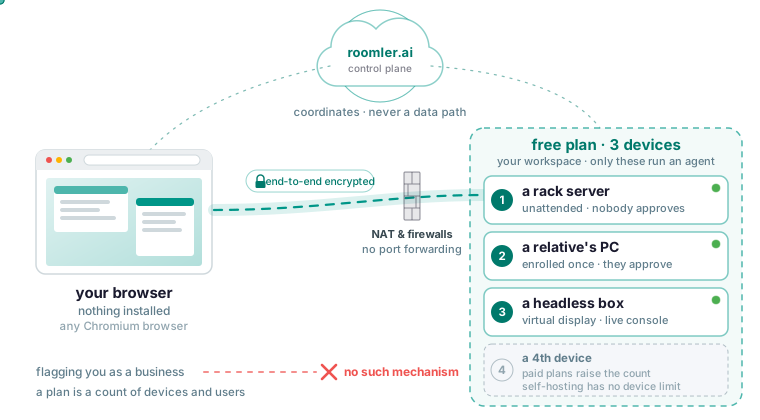
If TeamViewer or AnyDesk decided your spare-room setup looked like a business and cut the session, the fix is a tool with no way to make that call. Roomler’s plans are counted by devices and users, and there is no heuristic deciding whether you look like a business. The free plan covers three devices, with remote desktop, the private network, tunnels, chat and calls all included. You give up two things. Roomler cannot help a stranger by reading an ID and a password over the phone, because both machines must be in the same organization. And it has no mobile client, so a phone or tablet is never the controller.
Why the free tier flags you, and why a device count cannot
The comparison page names the single most common complaint about the incumbents’ free tiers: being flagged as a commercial user and locked out mid-session, with a slow appeals process. Roomler has nothing to guess with: a plan is a count of devices and users, and nothing in it tries to decide whether you look like a business. The side-by-side table reads “None” for Roomler under commercial-use detection, and “Yes, and a common complaint” for TeamViewer and AnyDesk. The decision list on the same page puts it as a rule: if you were flagged as a commercial user on a free tier, Roomler has no such mechanism. The limit you can hit is the device count, which paid plans raise and self-hosting removes.
What the free plan covers
The FAQ lists what is in it: three devices, with the private network, remote desktop, tunnels, chat and calls all included; paid plans raise the device count and add features like exit nodes; self-hosting has no device limit imposed by Roomler. Nothing in the first-session loop needs a card. Pricing is per user with a generous device count, instead of per-seat pricing that climbs with concurrent sessions.
The agent that serves the screen also puts the machine on a WireGuard-style mesh, so after the session you can still reach a database, an internal web app or SSH on it by name, without a second product. The machine gets a stable address and a name that other enrolled machines reach directly, with no port forwarding and no public exposure. Once two machines are on the mesh, two commands show where things stand:
roomler status          # this machine: address, name, carrier
roomler peers           # everything else on the mesh, and how it is reached
The second command also tells you when a pair has fallen back to a relay, which is almost always why a session feels slow. The most common cause by a wide margin is a VPN client on one end capturing the address ranges private meshes use; disconnect it on that end and watch the pair converge to direct.
Unattended access is two separate settings
Listicles tick one box for unattended access. The unattended access page splits it in two. Nobody has to approve, which is the device’s consent mode. And nobody has to be logged in, which is an operating-system question with a different answer per platform.
Consent has three modes: Ask, which prompts on the machine and waits; Ask then fall back to the owner, which hands an unanswered prompt to the device owner by email or push; and Automatic, which does not prompt. Automatic is the only value that skips the prompt, and a device with no consent setting at all asks. It means anyone with permission to view that device gets its screen with no human in the loop, which is right for a rack server and wrong for a colleague’s laptop, so set it per device. A session to your own server that times out, or waits for an approval nobody is there to give, is this setting left at its default. Change it on the device itself: a server-side policy cannot loosen a device that is set to ask, because the local setting is a floor.
Windows needs the system service mode, which runs the agent as a Windows service under LocalSystem and can reach the secure desktop: the lock screen, UAC prompts, and the login screen before anyone has signed in. The attended machine service and the per-user task cannot, so if you installed in another mode, re-run the installer with -Role daemon-system. The symptom of the wrong mode is a session that works until the machine locks or shows a UAC prompt, then freezes on the last frame. The Windows install page gives the one-liner for an Administrator PowerShell:
& ([scriptblock]::Create((irm https://roomler.ai/api/setup/install.ps1))) -Role daemon-system -Token <token> -Server https://roomler.aimacOS has no equivalent: screen capture requires a GUI login session, so a Mac must be logged in to be reachable as a desktop, though it may be locked.
Linux has two answers. A desktop uses the per-user unit and shares the session you are logged into, on X11 or Wayland. A headless box enables the agent’s virtual-display mode in its configuration, which gives the machine a screen so that View screen drops you into a live console. Set it in the config file, where it survives a reboot, and not through an environment variable. The Linux install page prints the desktop one-liner. The same line is the screen-sharing-only install on a Mac:
curl -fsSL https://roomler.ai/api/setup/install.sh | sh -s -- \
  --role daemon --token <token> --server https://roomler.ai --name "$(hostname)"
Unattended access is a standing key to a machine, and the feature people most often turn on everywhere and then forget. Grant it per device; the dashboard makes it a per-device switch for a reason. Then read the audit log now and then, because every session and every refusal is recorded with who, when and from where.
Helping a relative: enroll their machine instead of reading an ID
Helping a stranger by reading an ID and a password to each other is something Roomler cannot do today, because both machines must be in the same organization. If your job is ad-hoc support for people outside your organization, TeamViewer’s model fits that directly and Roomler does not yet.
A parent or friend you help every month is a different case: you enroll their machine into your own workspace once, with a token that can only ever join a machine to the workspace that minted it. In your dashboard, open Devices, then Enroll device, and mint one. The token is single-use and valid for about ten minutes. Treat it like a password and paste it into a terminal; a chat room is the wrong place for it. Your relative runs the one line for their operating system from the section above, and the machine appears under Devices within a few seconds. If it never appears, an earlier attempt probably spent the token, so mint a fresh one. Re-running the installer on a machine that is already enrolled reuses its device row instead of creating a ghost. Click the device, then View screen.
Leave their consent mode at the default. The prompt on their machine names who is asking and what for; approving starts the session, and denying ends it immediately, with the controller told it was a refusal rather than an error. If nobody answers, the prompt times out and you are told the reason was a timeout, so a parent who wandered off does not read as a parent who refused you. The agent also logs which prompt surface it used: a native panel on the desktop, the tray or menu-bar companion, the command line, or none, which it reports as “no prompt surface” instead of denying silently.
Nothing to install where you sit, and nothing the server can read
The viewing side is a current Chromium-based browser with nothing installed; only the machine you reach runs an agent. That is the line that matters on a borrowed laptop or a locked-down work PC. Firefox and Safari can sign in and use chat and calls, but the remote-desktop viewer targets Chromium for its low-latency decode path. There is no mobile client, so the iPad on the sofa does not drive the server in the cupboard.
Pixels, keystrokes, clipboard and files travel directly between the two ends, encrypted, or through a relay that carries only ciphertext, and the comparison page calls that a property of the topology. The server introduces the two ends and then gets out of the way; it coordinates and is never a data path. It holds no session video, no keystrokes and no tunnel contents, and the pixel stream is never recorded because the server is not in the path to record it. What it does keep is the audit record of each session: who connected, to which device, when, from where, and the outcome. Session contents are deliberately never recorded server-side, because a recording of a desktop or a terminal would ship whatever an operator typed off the machine. If your compliance regime needs session recording, the FAQ says no, and says the no is deliberate.
Self-host it and the device limit goes away
Self-hosting runs the same code as the hosted service, on your own machine, with nothing held back. It has no device limit imposed by Roomler. You run one container with the API, the web app, signalling, the chat and conferencing server and the relay floor, plus MongoDB and MinIO, on Docker with Compose v2, about 4 GB of RAM and 10 GB of disk.
git clone https://github.com/gjovanov/roomler-ai.git
cd roomler-ai
cp.env.selfhost.example.env.selfhost
Fill in the required values in .env.selfhost and generate the secrets with the lines the page gives, which also keep the datastore passwords alphanumeric; an @, :, /, ? or # in the MongoDB password breaks the connection URL in a way that looks exactly like a wrong password.
openssl rand -hex 32   # ROOMLER_JWT_SECRET
openssl rand -hex 32   # ROOMLER_TURN_SECRET
openssl rand -hex 24   # MONGO_ROOT_PASSWORD
openssl rand -hex 24   # MINIO_ROOT_PASSWORD
Then pull, and only then start:
docker compose -f docker-compose.selfhost.yml --env-file.env.selfhost pull
docker compose -f docker-compose.selfhost.yml --env-file.env.selfhost up -d
Compose treats a service with a build: section as buildable, so with no image present up -d compiles from source instead of downloading, and does it silently.
Your server serves its own installers, and the script it hands out names your origin, so a machine enrolled from your instance enrols against it; mint the token in your own dashboard. There is no automatic TLS, deliberately: terminate it in nginx, Caddy, Traefik or the load balancer you already run. The compose file runs a single node, and arm64 images are published but the whole stack has not yet been run on an arm64 host. The server is AGPL-3.0 and the agent MPL-2.0, and running it for yourself, your family or your company is what the licence is for. Why it was built to be run this way is the subject of an earlier post.
Where TeamViewer, AnyDesk and RustDesk still win
The comparison page opens with what the incumbents do better. TeamViewer and AnyDesk have two decades of polish, an enormous install base and an operational record only time produces. They run on every platform, including iOS, Android, ChromeOS and embedded builds. Their attended-support workflow, with session handoff and the read-the-ID-over-the-phone flow, has been refined over many years, and their certifications and support contracts are what a purchasing department already knows how to buy. The side-by-side table rates Roomler’s maturity as young and theirs as very mature. The overview of all the comparisons says every product on those pages is better than Roomler at the thing it was built for.
RustDesk leads the listicles, and the trade is similar. It has years of production use, native clients everywhere including iOS and Android, a large community, and a scope small enough that it does one thing. Roomler differs in two places. Any Chromium browser is the viewer, which matters on a machine you do not control. And the machine you connected to stays reachable on the mesh afterwards, where after a RustDesk session you still cannot reach its services. If your whole need is a mobile viewer or the most proven remote-desktop stack, that page tells you to pick RustDesk.
Which one to pick
Someone who supports strangers ad hoc should stay with TeamViewer or AnyDesk, because Roomler needs both machines in one organization. The same goes for anyone who needs a mobile client. Roomler is the pick when you were flagged as a commercial user on a free tier, since it has no such mechanism; when you want your own machines reachable as well as viewable; and when you want to host it yourself on the real code.
Start with the machine you are sitting at; a browser controlling its own host produces a mirror effect, which is expected. Pick the operating system, mint a token and paste it into the one-line installer, or use the graphical installer, which asks the same questions the flags answer. Install Roomler on one machine and open its desktop from a browser tab, following the quickstart.