
An open-source RustDesk alternative, and when to stay with RustDesk
- rustdesk-alternative
- rustdesk
- remote-desktop
- self-hosting
- open-source
- mesh-network
- ssh
- teamviewer-alternative
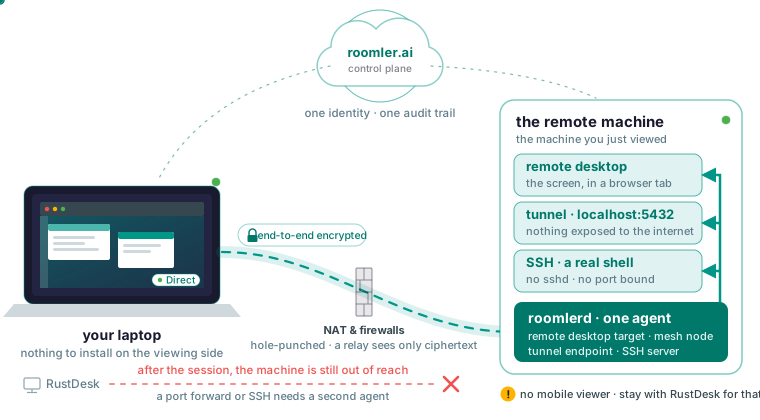
If you run RustDesk and want an open-source replacement you can host yourself, Roomler is one. Its server is AGPL-3.0, its agent is MPL-2.0, and running both for yourself is what the licence is for. The difference is the agent: one process on each machine is both the remote desktop you open in a browser tab and a node on a private WireGuard-style network, so the machine you were just viewing is also reachable by tunnel and by SSH. RustDesk stays the right choice if you need a mobile viewer or the most proven remote-desktop stack.
What RustDesk does better
RustDesk has years of production use behind it, and its viewer and codec paths have been beaten on by far more people and more hardware than Roomler’s. It has native clients everywhere, including iOS and Android, where Roomler’s viewer is a browser tab with no native mobile app. The table on the Roomler vs RustDesk page has a row for a mobile viewer, and it reads No for Roomler and Yes for RustDesk. RustDesk also has a large community, with translations and accumulated recipes, and it does one thing, which is a feature when that is the one thing you need. If your problem is “I need to see and control a remote screen”, RustDesk solves exactly that and solves it well.
The gap: after the session, the machine is still out of reach
After a RustDesk session ends you still cannot reach the machine’s services, so a port forward, a database connection or an SSH session needs a second product and a second agent. That is why the RustDesk plus Tailscale pairing exists. Tailscale’s own guide describes it: install Tailscale on every device, paste the target’s Tailscale IP into RustDesk’s connect field in place of an ID, enter the permanent password, and accept RustDesk’s warning that the connection is direct and unencrypted, because the traffic already runs inside Tailscale’s tunnel. The pairing works, at the cost of two agents, two control planes, two identity systems and two audit trails on every machine, and the remote-desktop half has no idea the mesh exists.
Tailscale is also the more mature mesh, with mobile apps, public ingress and SSO that Roomler does not have, and the Roomler vs Tailscale page says so before anything else. If what you want is a management console that relays RDP and VNC and keeps a hardware inventory, MeshCentral is the closer comparison, and the docs compare against it separately.
One agent that is the screen and the network
roomlerd is one process that is at once the remote-desktop target, a mesh node, a tunnel endpoint and an SSH server. It is one process because a machine has one network adapter with a fixed name, one local control socket, one set of routing state and one updater, and two agents would fight over each of them. Each enrolled machine gets a private address that stays the same when it moves between networks. It also gets a name you can use in place of the address, and a rename in the dashboard propagates across the mesh without touching the machines.
The mesh is part of the agent, with nothing separate to install: on Windows and Linux it comes up with the agent, and on macOS it needs the root half of the install, which is a second enrollment. A Mac without that half never joins the mesh, so it is missing from the peer list entirely instead of showing as offline.
Two commands show you the mesh from a machine’s own point of view:
roomler status    # this machine: address, name, and how it is connected
roomler peers     # everything else on the mesh, and how each one is reached
The first prints this machine’s address, name and carrier; the second lists every peer and the path currently carrying it. Paths form a ladder: same LAN, direct across the internet, hole-punched through NAT, then relayed, with a floor over TLS on port 443 when every UDP path is blocked. The server never carries your traffic in the clear, and the fallback relay forwards ciphertext it cannot read.
Tunnels and SSH to the machine you just viewed
A tunnel forwards a port on the machine you sit at, through the mesh, to a service the remote agent can reach; nothing is exposed to the internet, and the service keeps listening only where it always did.
roomler forward --agent <agent-id> --local 5432 --remote localhost:5432--agent takes the hex device id, copied from the device’s page in the dashboard, and a display name fails in a way that looks like the device is missing. --remote localhost:5432 reaches a service on the remote machine itself, while --remote db.internal:5432 makes that machine a jump host to something else it can reach. The command stays in the foreground and tears the forward down on Ctrl-C; --daemon hands it to the local agent instead, where you manage it with two more commands:
roomler flows          # every flow the local daemon is running
roomler kill <flow-id> # stop one
A forward you always want is declared as a route, which the agent reconciles on every start:
roomler route add --agent <agent-id> --local 5432 --remote localhost:5432
roomler route ls
roomler route disable <id>
roomler route rm <id>
UDP is forwarded as well as TCP. Every forward is checked against the organization’s tunnel policy before it is established, and every decision is recorded.
SSH gives you a real shell on a machine that runs no sshd, binds no port and needs no firewall rule, Windows included, because packets to the machine’s mesh address on the SSH port are intercepted below the socket layer.
ssh <device-name>
ssh <device-name> uptime
File transfer with scp and sftp works, as do -L local forwards, -J jump hosts and -D dynamic SOCKS. -R remote forwarding is deliberately not implemented, since it would make the machine bind a listening socket. SSH is off by default behind four gates: the organization’s SSH switch, the user’s SSH permission, which the default administrator role does not include, the device’s SSH policy, and the machine’s own configuration with an authorised key list. Enabling SSH without listing a key grants nobody anything, and the server cannot write that last setting. The server records who asked for a session and whether it was granted, and nothing records the keystrokes or the command output.
Nothing to install on the viewing side, and what that costs on mobile
The viewer is any current Chromium-based browser with nothing installed; only the target runs an agent. For support work, that matters most on a machine you do not control, such as a client’s laptop or a locked-down desktop. Firefox and Safari can sign in and use chat and calls, but the remote-desktop viewer targets Chromium. The reason is latency: a normal video element enforces a jitter buffer of roughly 80 ms, and in Chromium the viewer decodes frames directly and paints them, skipping that buffer. The consequence is that there is no mobile viewer, so an iPhone, an iPad or an Android phone cannot drive a remote desktop, and RustDesk wins this outright.
Once connected, the session’s LAN / Direct / Relay indicator tells you how the two ends are talking. A relayed pair keeps trying to upgrade to a direct path in the background, so one that stays relayed has a cause you can find. The most common cause by a wide margin is a VPN client on one end: corporate VPN clients frequently capture local network ranges, including the ranges private meshes use, so two machines on the same physical network sit on a relay while every surface reports normally. Disconnect the VPN client on one end and watch the pair converge to Direct; if it does, that was the cause. Cannot connect lists the other causes in the order they occur.
Unattended access without a shared password
RustDesk’s unattended model is an ID plus a permanent password, the one Tailscale’s guide has you enter when prompted. Roomler has no equivalent to hand around: when you click View screen, the server checks you are allowed and introduces the two ends, and the machine then asks whoever is sitting at it unless it is set up for unattended access. The three consent modes are Ask, where a prompt appears on the machine and the session waits; Ask with a fallback to the owner by email or push if nobody answers; and Automatic, with no prompt. Only Automatic skips the prompt, and a device with no setting at all asks. Set it per device and deliberately, since Automatic is right for a rack server and wrong for a colleague’s laptop. The device’s own setting is a floor that a server-side policy cannot loosen, which is what keeps it a gate if the control plane is ever compromised.
Being reachable with nobody logged in is a separate, per-OS problem. On Windows only the system service mode (Machine, system in the installer) runs as LocalSystem and can reach the lock screen, UAC prompts and the pre-logon desktop; if you chose another mode, re-run the installer with -Role daemon-system. If a session works until the machine locks and then freezes on the last frame, the service mode is the cause. macOS has no equivalent, so a Mac must be logged in, though it may be locked. On Linux a desktop machine uses the per-user unit, and a headless one enables virtual-display mode in the device configuration.
Every session request and refusal is audited with who connected, to which device, when, from where, and the outcome. A refusal carries its reason: denied, timed out, or no prompt surface. Unattended access is a standing key to a machine, so grant it per device and read the audit log occasionally.
Self-hosting, and what the server can see
A RustDesk self-hoster runs an ID server and a relay. Roomler’s self-hosted server is one container holding the API, the web app, the signalling plane, the chat and conferencing server and the relay floor, plus MongoDB and MinIO, with no feature held back and no device limit imposed by Roomler. You need Docker with Compose v2, about 4 GB of RAM and 10 GB of disk.
git clone https://github.com/gjovanov/roomler-ai.git
cd roomler-ai
cp.env.selfhost.example.env.selfhost
Fill in the required values, keeping the datastore passwords alphanumeric: a special character in the MongoDB password breaks the connection URL, and the failure looks exactly like a wrong password. Then pull before you bring it up:
docker compose -f docker-compose.selfhost.yml --env-file.env.selfhost pull
docker compose -f docker-compose.selfhost.yml --env-file.env.selfhost up -d
The order matters because Compose treats a service with a build section as buildable, so a missing image is compiled from source instead of downloaded, silently. On arm64 there is no published image yet, so add --build there on purpose. There is no automatic TLS; terminate it in the proxy you already run and set your public origin in the environment. Your server serves its own installers, and the script it hands out names your origin, so machines enroll against your instance.
The server holds accounts, device rows, permissions, audit records, chat messages and uploaded files. It does not hold session video, keystrokes, tunnel contents, SSH bytes or mesh traffic. Once two machines can find each other the server is off the path, so there is nothing for it to log even in principle, and a relay forwards ciphertext it cannot decrypt. The one exception is conference media, which passes through the server’s forwarding unit because that is what a multi-party call needs. The licence split, an AGPL-3.0 server and an MPL-2.0 agent, is written down together with what it means if you intend to offer the product as a service.
Signed releases and an updater that checks the publisher
Windows installers are Authenticode-signed with the publisher G ROX LTD, macOS artifacts are Developer ID signed and notarised where the format allows, and every platform carries a detached GPG signature against a published release key plus SLSA build provenance. The updater runs what it downloads as SYSTEM on Windows or root under systemd, so before installing anything it checks, in order:
- that the signature is valid, with GPG against a key pinned inside the binary on Linux and macOS;
- that the signer names G ROX LTD, because an attacker with any legitimate certificate produces a file the operating system trusts;
- that the version inside the signed artifact equals what the manifest claimed, so a tampered manifest cannot roll a fleet back onto a signed older build.
Only then does it install, and it rolls back if the new version crash-loops.
Installers and updates come through your server’s own origin instead of GitHub, so a corporate allow-list only has to trust one hostname. That is also the fix when antivirus or endpoint protection blocks the download at a client site, the wall the earlier TeamViewer post describes: allow-list that origin and retry.
The signed releases page states two gaps: the manifest itself is not yet signed as a unit, and the standalone tunnel CLI’s self-update does not yet share the agent’s pinned-key path. The compare table’s row for signed releases plus publisher check reads Yes for Roomler and Varies for RustDesk. To check an install by hand:
Get-AuthenticodeSignature "C:\Program Files\Roomler\roomlerd.exe" |
Select-Object Status, @{n='Signer';e={$_.SignerCertificate.Subject}}gpg --verify roomlerd-<version>-x86_64-unknown-linux-gnu.deb.asc roomlerd-<version>-x86_64-unknown-linux-gnu.deb
gh attestation verify roomlerd-<version>-x86_64-unknown-linux-gnu.deb --repo gjovanov/roomler-aiSide by side, and when to stay with RustDesk
The compare page’s table, row for row:
| Capability | Roomler | RustDesk |
|---|---|---|
| Remote desktop | Yes | Yes |
| Viewer install needed | No, a browser | Yes |
| Mobile viewer | No | Yes |
| Private mesh network | Built in | No |
| SSH and tunnels to the machine | Yes | No |
| Self-hostable | Yes | Yes |
| Signed releases plus publisher check | Yes | Varies |
| Chat and video | Included | No |
| Maturity | Young | Mature |
Stay with RustDesk if you need a mobile viewer, because Roomler has none, or if you want the most proven remote-desktop stack. Move to Roomler if you want to reach the machine’s services after the session ends, if you support people on machines you do not control and want nothing for them to install, or if you want one agent, one identity and one audit trail.
The free plan covers three devices, with the private network, remote desktop, tunnels, chat and calls included. Install Roomler on one machine and open its desktop from a browser tab, starting with the quickstart.