
How a SOCKS5 proxy works, and how to run one into your own LAN
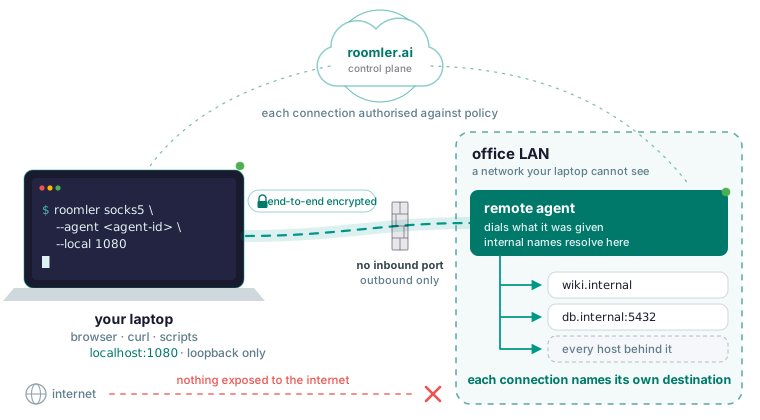
A SOCKS5 proxy is a listener on your own machine that takes a destination host and port from each client connection and has another machine dial it. Point a browser or curl at localhost:1080 and every connection they open is carried to that other machine, which connects to the destination from where it sits and relays the bytes both ways. When that machine is on a network your laptop cannot see, an office LAN or a cloud VPC, the proxy is a door into it: opened once and reused for every host behind it, with no port forward per service.
The pages that rank for this question explain the handshake and then sell address masking. This one stays on the self-hoster’s use. With --agent, the proxy exits through one machine of yours. The listener is bound only on your own machine. Every connection through it is authorised individually against your organization’s policy.
What a SOCKS5 proxy does at connect time
The protocol is RFC 1928, and it is short. Your client opens a TCP connection to the listener and lists the authentication methods it can do; the proxy picks one, either none or a username and password as defined in RFC 1929. The client then sends a request: a command, a destination and a port. The command is CONNECT for a TCP connection or UDP ASSOCIATE for datagrams; BIND exists for protocols that need the far side to connect back, and almost nothing uses it. The destination may be an IPv4 address, an IPv6 address or a domain name, and the third form is what the DNS section below turns on. The proxy dials the destination from wherever it sits, reports success or failure, and then copies bytes in both directions until either side closes.
Because the destination arrives with each connection, one listener serves any number of them. A port forward is one known port to one known service, and a SOCKS5 proxy is many destinations chosen by the client at connect time, which is what you want when you are browsing an internal network rather than talking to one database.
Where the listener sits, and which machine does the dialling
Two machines take part. The listener runs on the machine you sit at, on the port you pass as --local, bound to loopback. The far end is an agent on a machine inside the network you want, and the diagram the tunnels page draws for a port forward applies with one change:
localhost:5432 -> [ your machine ] ==mesh==> [ remote agent ] -> db.internal:5432The proxy keeps everything up to the remote agent and generalises the right-hand end: instead of fixing db.internal:5432 on the command line, each client connection names its own destination, and the agent dials what it was given. Nothing is exposed to the internet, and the remote service keeps listening only where it always did. No machine opens an inbound port for any of this: an agent needs outbound TCP 443 to the server and outbound UDP to peers, and nothing inbound, because both ends connect outbound.
Which software goes where follows from the direction you reach in. The far machine is the one you reach, so it gets the full agent. The laptop only reaches out, so the tunnel client is enough: the roomler command on its own, which opens tunnels from the machine, runs only while you run it and does not join the mesh. The install page builds the install line from a token you mint under Tunnel clients in the dashboard, a different token type from the device enrollment token.
Start one into a network you own
It takes two commands, both from the SOCKS5 page. On the laptop:
roomler socks5 --agent <agent-id> --local 1080Then point a client at localhost:1080:
curl --socks5-hostname localhost:1080 http://wiki.internal/--agent takes the hex device id, which you copy from the device’s page in the dashboard; a friendly name is not resolved here, and passing one fails in a way that looks like the device is missing. Check that first when the command fails at startup.
For a browser, set localhost:1080 as the SOCKS proxy in a profile and browse the internal network as though you were on it. Scripts need no changes either, since most CLI tools accept a SOCKS proxy through ALL_PROXY or a flag.
If the proxy starts and nothing flows, run roomler peers: when the far end is not reachable the proxy is a symptom, and the diagnosis starts on the cannot-connect page. If it flows but everything is sluggish, check which path the pair is on, because a relay is slower and bandwidth-capped. The most common cause by a wide margin is a VPN client on one end; disconnect it and watch the pair converge to direct.
Remote-side DNS is the flag that decides whether it works
The curl line uses --socks5-hostname, and the near-identical --socks5 fails for this example; the difference is where the name gets resolved. With --socks5, curl resolves wiki.internal on your laptop first and then asks the proxy to connect to the resulting address, and that lookup fails with “unknown host”, because the name exists only inside the network you are proxying into. With --socks5-hostname the name travels inside the SOCKS request and the far end resolves it where it does resolve. The docs call this one flag the difference between “it works” and “unknown host”.
Browsers have an equivalent setting that sends DNS through the SOCKS proxy; turn it on in the profile you point at the proxy, or internal names fail there the same way.
UDP association, and why your DNS does not leak out
A hostname inside the request is one mechanism. UDP through the proxy is a second one, and it is easy to confuse the two. The UDP ASSOCIATE command sets up a relay for datagrams, and the proxy supports UDP association, so DNS and other UDP protocols go through it instead of falling back to your local resolver, which also keeps internal names from leaking outward to whatever DNS your laptop’s network hands out. The same UDP support is what makes DNS, game servers and some VPN protocols work through a port forward.
An exit node does this for everything the device sends: DNS follows the traffic and queries are answered from the exit node’s vantage point, so nothing leaks to your local resolver. The proxy does it only for the clients you point at it, and the rest of the laptop resolves names as before.
Mesh mode: one listener for every machine you may reach
Omit --agent and the proxy reaches every machine you are allowed to reach, addressing each by its device id as the SOCKS hostname.
roomler socks5 --local 1080                                  # mesh mode
curl --socks5-hostname localhost:1080 http://<agent-id>:8080/
That turns one listener into an entry point to your whole private network, where --agent gave you one site of it. There is no --mesh flag: naming an agent scopes the proxy to it, and not naming one opens it to the whole organization, subject to the same access rules.
Every connection is authorised on its own
The proxy does not widen what you may reach: every connection through it is authorised individually against the organization’s policy, exactly as a port forward is. A forward is checked against the organization’s tunnel policy before it is established, and every decision is recorded.
That makes the proxy the place where policy is most visible. A browser opens many connections to load one page, and any one of them can be refused on its own, so a page can half-load with no error from the proxy. When that happens the fix is in the rule, and the recorded decisions show what was refused.
A rule, as the network access control page lays it out, names a source (a device, a tag, a user or a group), a destination (a device, a tag or an address range), and the ports and protocols that may be reached, written like tcp:443 or udp:53. A policy runs in one of three modes, Off, Warn or Enforce, and the rollout goes through Warn first, where every packet that would have been denied is recorded without being dropped. If the policy cannot be read, the answer is no. The rules gate relay use as well as direct connections, so a longer path to a peer is no way around them. With enforcement on, a peer you may not reach does not appear in your peer list at all, so a missing peer can be a policy decision before it is a network problem.
The security model page lists one limit that applies here: network ACLs are feature-complete but have not yet been widely exercised in enforcing mode, so read what Warn reports before you switch.
What is encrypted, and what the server never sees
SOCKS5 adds no encryption of its own; it relays whatever bytes the client sends. Between your laptop and the far agent the bytes ride the mesh, and tunnel payloads are encrypted end to end between the two machines, with keys negotiated between them rather than issued by the server. The server’s job for the data planes ends once the two machines can find each other; after that it is not on the path, so there is nothing for it to log even in principle. Tunnel contents are on the list of what the server does not hold: a forwarded connection is between your two machines. When no direct path exists, a relay forwards ciphertext it cannot decrypt.
From the far agent onward, the destination is reached the way any client on that network reaches it. The service’s own protocol protects that last hop: HTTPS to the wiki stays HTTPS, and plain HTTP is plain HTTP on that LAN, as it would be from a desk there.
If you self-host, the server is yours as well, so what the server sees becomes what your own machine sees, and nothing is held back from a self-hosted deployment. The whole server comes up from one compose file on a host you control.
Keep it on loopback, and stop it when you are done
--local binds the listener to loopback. Ctrl-C, or close the terminal: the listener is bound only on your own machine and disappears with the process, so a proxy that vanished when its terminal closed did what it was built to do.
The docs put the danger in one sentence: a SOCKS5 proxy with no authentication, listening on 0.0.0.0, is an open relay into your private network for anything that can reach that port. So do not re-expose the listener with another tool. A colleague or a second VM that needs the same access gets its own tunnel client, with its own token, and opens its own proxy.
roomler flows lists what is open right now.
roomler flows                                                     # what is open right now
roomler kill <flow-id> # stop one
The CLI reference documents --daemon as handing the flow to the local agent so it outlives the command, with roomler kill <flow-id> to stop one.
SOCKS5, port forward, exit node or ssh -D
| You want | Reach for | Why |
|---|---|---|
| One known port to one known service | A port forward | The simplest thing that works. |
| Many destinations, chosen by the client at connect time | A SOCKS5 proxy | Good for browsing an internal network. |
| One address range, reachable by every app with no proxy setting | A subnet router | The smaller, safer tool than an exit node. |
| All of a device’s traffic and DNS through one machine | An exit node | Not per-application, and not anonymity. |
| A dynamic SOCKS port out of an SSH session | ssh -D |
Works on Roomler’s sshd-less SSH, with -L and -J. |
For one service, a forward is less to set up:
roomler forward --agent <agent-id> --local 5432 --remote localhost:5432ssh -D through a bastion keeps one advantage over all of these: it needs nothing beyond the OpenSSH client you already have and an account on a box that runs sshd, with no agent on either end. What it lacks is a policy anywhere except the bastion’s own sshd configuration, because no server sits in the path. On Roomler’s SSH the forward allow-list is default-deny: an empty list means nowhere, because an SSH direct-tcpip channel has no server in the path at all, so an empty list must mean nothing is permitted or every session would be a silent open pivot into whatever that machine can reach. A roomler socks5 flow is the other case: like any tunnel flow it was authorised by the server before it reached the machine, which is why it can be open to everything your policy allows. -R is deliberately not implemented, because it would make the machine bind a listening socket.
The SOCKS5 add-on a commercial VPN sells is built for sending your traffic out through the provider’s address, and it does that well; it cannot reach a wiki that only resolves inside your office, because none of the provider’s machines sit there.
Everything above needs two machines that can see each other over the mesh: one you sit at and one inside the network you want. Put two of your machines on one private mesh in a few minutes: join them in the quickstart.