
Self-hosted video conferencing: why calls join but show no video
- self-hosting
- video-conferencing
- docker-compose
- webrtc
- troubleshooting
- teams-alternative
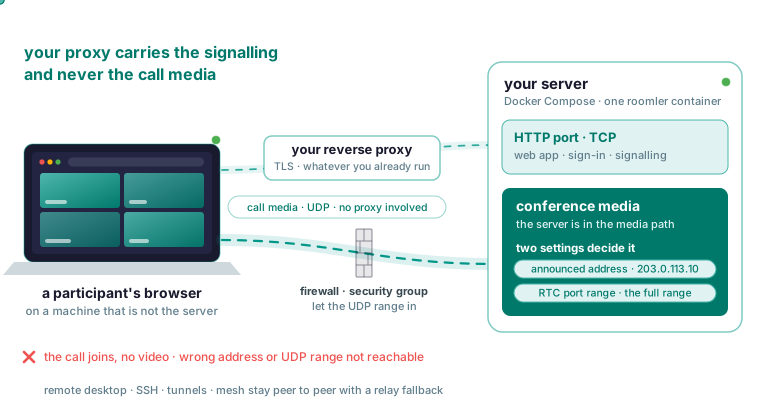
Why the call joins but no video arrives
Your reverse proxy carries the web app, sign-in and call signalling, and it never carries the call media. Browsers send that media straight at an address the server advertises, on a UDP port range, so no proxy is involved and none can help. If the address is wrong, or the ports are not reachable, everything about joining a call succeeds and no picture ever appears. Two settings decide it, the announced address and the RTC port range, and the rest of this article sets them in order.
The application logs look clean because joining is signalling: a successful transport connect proves only that the browser sent its parameters, and says nothing about whether packets can flow. Perfect signalling with no video is the expected shape of this failure, and a confusing one to debug from the application logs.
Calls run on a selective forwarding unit: each participant sends their stream once to the server, which forwards it to the others. That makes calls the one feature where the server is in the media path. Remote desktop, tunnels, SSH and the mesh are peer-to-peer with a relay fallback, and they work through anything. A relay on those paths forwards ciphertext it cannot decrypt.
Bring the server up with Docker Compose
One compose file runs one container with the API, the web app, the signalling plane, the chat and conferencing server and the relay floor, plus MongoDB and MinIO for state and file storage. You need Docker with Compose v2, about 4 GB of RAM and 10 GB of disk. The self-hosting quickstart starts with a clone of the repository (the quickstart prints the URL) and a copy of the environment example.
cd roomler-ai
cp.env.selfhost.example.env.selfhost
Fill in the required values in .env.selfhost, generating the four secrets with openssl.
openssl rand -hex 32   # ROOMLER_JWT_SECRET
openssl rand -hex 32   # ROOMLER_TURN_SECRET
openssl rand -hex 24   # MONGO_ROOT_PASSWORD
openssl rand -hex 24   # MINIO_ROOT_PASSWORD
Keep the MongoDB and MinIO passwords alphanumeric (hex output is), because the MongoDB password is interpolated into a connection URL and an @, :, /, ? or # inside it breaks the URL in a way that looks exactly like a wrong password. Keep .env.selfhost out of version control and readable only by the account running the stack. The server refuses to start in production mode on the built-in default token secret, on purpose, so a default cannot reach production quietly.
Pull first, then bring it up.
docker compose -f docker-compose.selfhost.yml --env-file.env.selfhost pull
docker compose -f docker-compose.selfhost.yml --env-file.env.selfhost up -d
Compose treats a service with a build: section as buildable, so up -d on its own compiles a missing image from source instead of downloading it, and does so silently. On a clean 4-vCPU VM with a data-centre connection the pull took 10 seconds (measured 2026-10-12), and a build takes roughly six minutes on a 16-core machine. Images are published for linux/amd64 and linux/arm64 and are anonymously pullable. The arm64 image is built and smoke-tested on a native arm64 machine, but nobody has run the whole stack on an arm64 host yet.
Follow the roomler service log while it comes up.
docker compose -f docker-compose.selfhost.yml --env-file.env.selfhost logs -f roomlerPut the web app behind your proxy, and leave the media out of it
There is no automatic TLS, deliberately: terminate it in whatever you already run, nginx, Caddy, Traefik or a cloud load balancer, and point the proxy at the container’s HTTP port. Set your public origin in the environment so sign-in returns, invite links and the CORS policy all agree about who you are. Server settings are environment variables prefixed ROOMLER__, so the public origin setting lives in .env.selfhost.
A port is part of an origin, so http://127.0.0.1 and http://127.0.0.1:8080 are different origins, and a mismatch produces a refused websocket upgrade and realtime parts of the app that silently do not work, never a helpful error. By default only the application’s own origin is allowed, and widening that is a deliberate act. Session cookies are full API credentials, so serve over HTTPS for anything beyond a laptop talking to itself.
The ports reference lists what a self-hosted server exposes.
| Port | Protocol | For | Exposure |
|---|---|---|---|
| Your HTTP port | TCP | API, web app, control connections, the relay floor | Behind your TLS terminator |
| The RTC range | UDP | Conference media | Reachable from participants |
| Database | TCP | The application only | Internal |
| Object store | TCP | The application only | Internal |
The proxy configuration you just wrote covers the first row and cannot touch the second. The last two rows are for the application and never for the internet, so keep them on an internal network.
Set the announced address and check it in the log
The announced address is where browsers send media, and 127.0.0.1 works only for calls made on the host itself. That is why a fresh install appears to work when you test from a browser on the server and fails from every other machine. Set the announced IP in .env.selfhost to an address participants can reach, such as the server’s public address (203.0.113.10, say).
The troubleshooting page confirms it with one grep of the roomler service log.
docker compose -f docker-compose.selfhost.yml --env-file.env.selfhost \
  logs roomler | grep -i announced
If it reports a loopback or container-internal address, that is your answer. Change the setting, bring the stack up again with the same up -d command, and grep again until it shows the address participants use. It is also one of the two values to include when you report a problem, with the port range.
Open the UDP range, or use host networking on Linux
The compose file maps 32 RTC ports by default, enough to try it, and a real deployment wants the full range reachable from participants. Widen the RTC port range in .env.selfhost to the full range.
On Linux the clean answer is host networking: give the roomler service the line below, drop its ports: block, and the whole range is reachable.
network_mode: hostThat is how the hosted service runs. It is not available on Docker Desktop for macOS or Windows, which is why the port-mapped form is the default. On a Mac or Windows laptop, stay port-mapped and widen the mapped UDP range, or move the real deployment to a Linux host.
Whatever firewall or cloud security group sits in front of the host must let that range in over UDP from participants. Those are the only inbound rules in this article: participants and agents need nothing inbound and no port forwarding on a router.
If nobody can join at all, check the relay URL before the ports
If nobody can join, in any browser, on any network, you have a different problem. A blank relay address advertises an ICE server with an empty URL, which browsers reject outright. If no call has ever worked on a fresh deployment, check this before the port range.
ROOMLER_TURN_SECRET is one of the four secrets you generated in the quickstart. A separate TURN server is not on the critical path, because the built-in relay floor over the API’s own port already guarantees connectivity when no direct path exists. So check that the relay address in .env.selfhost is set.
Verify with a call from another machine, then after every upgrade
Start with the health endpoint from outside the host, liveness first and then readiness with its dependencies. The command names roomler.ai; substitute your own origin.
curl -sI https://roomler.ai/health         # liveness
curl -s  https://roomler.ai/health/ready   # readiness, with dependencies
Then make a call from a browser on a machine that is not the server, because a call made on the host passes with a loopback announced address and proves nothing. If it still fails, match the symptom:
| What you see | Where to look |
|---|---|
| Video works from the host only | The announced address is loopback or container-internal. |
| Nobody can join, anywhere | The relay address is blank. |
| Works for some colleagues and not others | On a multi-node (Kubernetes) deployment, one node is missing its media forwarding rules, which breaks a consistent subset of organizations. |
| Works everywhere except one location | That network blocks the UDP range media uses. |
| Audio works, video does not | Bandwidth, since audio is small and survives while video is dropped first; check the network between that participant and the server. |
| A tile shows an avatar | That person’s camera is off, shown on purpose instead of a frozen frame. |
| A camera-off tile and no error | A blocked camera or microphone permission in that browser. |
Upgrading is pull then up -d, and state lives in the MongoDB and MinIO volumes, so back those up and not the container. After every upgrade, self-host hardening gives four checks, in order.
- The health endpoint returns success.
- A device still shows online.
- A remote session still connects.
- A call still carries video, the most fragile of the four and the one most likely to be hit by a network change.
If you report a problem, include whether it is hosted or self-hosted, whether anyone ever sees video, whether audio works, and the announced address and port range.
What a self-hosted call server gives you
Self-hosting has no plan limits at all. The hosted Free plan holds up to 10 people for up to 60 minutes, with a notice five minutes before the end, and paid plans hold more people with no time limit. Calls work in current Chromium browsers, Firefox and Safari. You can share a window, a screen or a tab, the room’s chat stays open during the call, and everyone can see who has muted or turned their camera off.
It is not a webinar tool: calls are meetings, and a broadcast to hundreds is out of scope. Nor does it replace Slack for a large organization, since there are no third-party app integrations and no workflow platform. If you already have Slack or Teams, the remote-access and networking pillars stand on their own. And self-hosting collapses the question this article opened with, of the server sitting in the media path: the server is yours, so what the server sees is what your own machine sees.
Start a room for your team with the quickstart.