
Reach a NAS and printer from anywhere with a subnet router
- subnet-router
- private-network
- mesh
- nas
- access-control
- tailscale
- tailscale-alternative
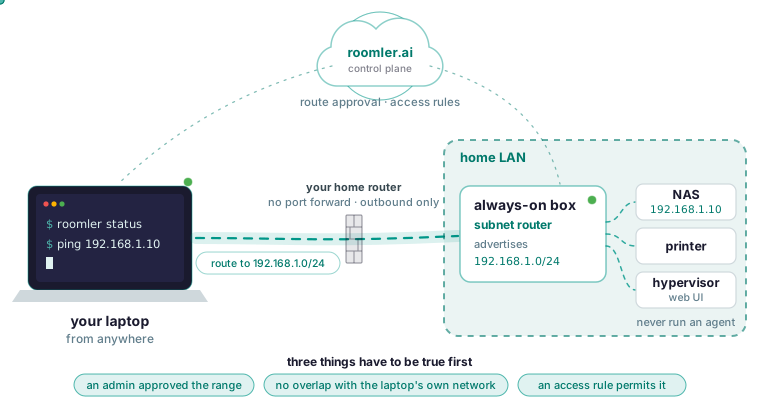
What a subnet router does for a NAS and a printer
A subnet router is one enrolled machine that advertises a whole network range on behalf of devices that will never run an agent, so every other machine on the mesh can reach addresses in that range through it. The docs’ examples are a printer, a NAS, a switch’s management interface, a hypervisor and an industrial controller. Before the laptop reaches any of them from outside, three things have to be true. An administrator has approved the advertised range. The range does not overlap the network the laptop is sitting on. And an access rule permits the laptop to reach those addresses on those ports.
The example for the rest of this article is a home LAN on 192.168.1.0/24 with a NAS at 192.168.1.10, a network printer, and a hypervisor whose web UI you want to open from the laptop. Tailscale does one thing better here: its client runs on Synology, QNAP and routers, so a NAS can join a tailnet by itself, and Tailscale is the more mature mesh. Roomler’s agent is Windows, Linux and macOS, so your NAS sits behind a subnet router. Both products have subnet routers, and the comparison page has the rest side by side.
Pick the machine that will advertise the range
Step one of the four steps on the subnet-routers page is the machine: one that is already on the network you want to reach and is normally on, and a small always-on box is ideal. It has to stay on the mesh with nobody logged in, which is what the service modes are for. On Linux that is System mode, installed with --system as a root systemd unit, meant for servers and headless boxes. Windows calls it the Machine system mode, meant for servers and unattended workstations. The mesh comes up with the agent on both. macOS is different: the mesh needs the root half of the install, because creating a utun interface and installing routes requires root. A Mac with only the user half installed never joins the mesh and is absent from roomler peers entirely rather than showing as offline; the macOS install page covers the second token the root half needs. Expect such a Mac to show as two device rows, one of them named with a -daemon suffix.
Nothing here needs a port forward on your home router: the agent needs outbound access only and nothing inbound, because both ends connect outward. Once the agent is in, check the daemon that matches the install.
roomler status     # per-user install
sudo roomler status # system install
Read the whole line. It prints the server connection and the mesh state per organization, because a device can be connected to the control plane and still have no mesh.
Advertise the range, then have an admin approve it
Step two is to configure that machine to advertise the range, 192.168.1.0/24 in the example. Step three is an administrator approving the advertised range in the dashboard. The exit-nodes page calls that list the dashboard’s routes table.
Advertising and approving are separate steps by design: a machine advertising a range does not get to route it until an admin approves, because “I can reach 10.0.0.0/8, send me everything for it” is a large claim, and it takes two parties. So when the box is configured and nothing on the mesh can reach the LAN, the first suspect is an approval that has not happened yet. Step four follows on its own: every other device on the mesh can now reach addresses in that range, routed through the advertising machine.
Subnet router or exit node
The two are often confused, and the docs settle it in a table.
| Property | Subnet router | Exit node |
|---|---|---|
| Routes | One specific network range | All internet traffic |
| On the client | Extra routes | The default route changes |
| If it goes down | You lose that network | The client loses internet access |
| Typical use | Reach the office LAN | Appear to be at the office |
Prefer a subnet router when you can: redirecting a device’s entire default route is a much bigger change than adding a route to one range, and it fails in a much more visible way. The exit-nodes page says the same from its side: an exit node is not a substitute for a subnet router, and if you only want to reach a specific network, a subnet router does that without redirecting everything. A NAS, a printer and a hypervisor UI on one LAN are that specific network.
The overlapping 192.168.1.0/24 trap
Advertising a range that overlaps the client’s own local network is what the docs call the usual cause of “everything broke when I approved this”. Your home LAN is 192.168.1.0/24. You take the laptop to a friend’s flat or a hotel whose network is also 192.168.1.0/24, which happens often because many consumer routers ship with that range. The admin approves the route. The laptop now sends everything for 192.168.1.0/24 over the mesh, including the packets meant for the gateway it is sitting behind: a laptop on 192.168.1.0/24 that suddenly routes 192.168.1.0/24 over the mesh has lost its own router. With the gateway gone, the LAN and the internet go together.
The fix is two rules from the same page: pick unambiguous ranges, and advertise the narrowest range that covers what you need. In the example that makes the full 192.168.1.0/24 the worst range to approve, since it is the one a roaming laptop is most likely to be sitting on; advertise the narrowest range that still covers the NAS, the printer and the hypervisor, and do not approve a range a roaming client is likely to be on itself.
Why two advertisers do not load-balance
A second always-on box advertising the same range does not spread the NAS traffic across both: when two machines advertise the same range, traffic is routed through one of them, and it does not load-balance. The docs’ instruction is to advertise a range from one machine unless you have a specific reason not to. What they say about that one machine going down is in the table above: you lose that network.
An approved route still needs an access rule
Approving a route makes the range reachable. Who may reach which addresses through it is still governed by the organization’s access rules. The docs call that separation deliberate: routing and authorisation are different questions, and collapsing them is how a subnet router becomes an accidental bridge into a production network. When the NAS web UI is refused, or one laptop gets in and another does not, the rules are where to look.
A rule names a source, a destination, and what may be reached. The source is a device, a tag, a user or a group; the destination is a device, a tag or an address range; the ports and protocols are written tcp:22, tcp:443, udp:53, or all. Tags are what the docs recommend at any scale, with rules written between tags. The worked example on the access-control page tags its laptops laptop, so this one does too. The rule for the example is then: source laptop, destination 192.168.1.0/24, ports tcp:443 for the NAS and hypervisor web UIs, plus the port the printer listens on.
Policies run in one of three modes: Off applies no policy, Warn evaluates every decision and logs it without blocking anything, and Enforce applies the decisions. Go through Warn first and read the log: every packet that would have been denied is recorded without being dropped, so you see which rule is wrong before it costs anyone their access. The docs themselves say that network ACLs are feature-complete but have not yet been widely exercised in enforcing mode in the field, and that Warn is the recommended path for that reason.
Two properties of the rules matter for a router in particular. They are enforced at both ends: a peer you may not reach is not in your peer list, and the receiving machine enforces again on arrival, so it will not accept traffic it was never entitled to receive even if the sender misbehaves. That arrival check covers destination validity, so a peer cannot address something outside what it advertises. Relays are covered too: the rules gate relay use as well as direct connections, so a machine cannot reach a peer it is not entitled to by taking a longer path. The peer-list half has a visible side effect: with ACLs enforcing, a router the laptop may not reach is not in the laptop’s peer list at all, and a refusal for permission reasons is reported as a refusal, so read the message before treating it as a network failure.
The docs also keep apart two states that look alike from the laptop. No policy compiled falls back to the coarse organization-wide scope, and a policy that permits nothing denies. With no policy written, that coarse scope is what decides, and approval on its own has blocked nothing. With a policy created and left empty, nothing gets through, which looks a lot like a broken route.
Check it from another device
From a device other than the router, confirm you have the route, then ping an address in the range.
roomler status     # confirm you have the route
ping <an-address-in-the-range>
In the example that address is the NAS, 192.168.1.10. If the route is present and traffic does not flow, the docs’ order of suspects is the advertising machine’s own firewall first, then the access rules. Before either, check that the router is reachable at all: roomler peers names every peer, its address and the path currently carrying it.
roomler peers # everything else on the mesh, and how each one is reachedIf the pair to the router sits on a relay and the laptop runs a corporate VPN client, that client is the first cause on the cannot-connect page: VPN clients capture local ranges, and the test is to disconnect the VPN on that end and watch the pair converge to direct. For the firewall question, the CLI’s diagnostics collect the evidence on the devices themselves.
roomler diag host                  # evidence bundle from one device
roomler diag pair <other-agent-id> # both ends, side by side
Run diag host on the router: it gathers adapters, routes and firewall posture from the device it runs on, and diag pair gathers both ends side by side. The NAS or the printer may also run a firewall of its own that answers only its local subnet.
When one service is enough, use a tunnel instead
The same reasoning that prefers a subnet router to an exit node prefers a tunnel to a subnet router when you need one service. A port forward reaches a service through the always-on box without routing a whole range, and nothing is exposed to the internet; the tunnels page draws the shape.
roomler forward --agent <agent-id> --local 5432 --remote localhost:5432--remote localhost:5432 reaches a service on the agent machine itself; name a LAN host there instead and the agent machine becomes a jump host to something else it can reach, which for the NAS web UI means the always-on box as the agent and the NAS’s address and web port as the remote. --agent takes the hex device id from the dashboard, and a display name is not resolved there: passing one fails in a way that looks like the device is missing. The command stays in the foreground and tears the forward down on Ctrl-C; add --daemon to hand the flow to the local agent so it outlives the command.
roomler forward --agent <id> --local 5432 --remote db.internal:5432 --daemonTo browse several LAN hosts without a forward for each, a SOCKS5 proxy is one listener that reaches many destinations, chosen by the client at connect time. With --agent it exits through that one machine.
roomler socks5 --agent <agent-id> --local 1080Every connection through it is authorised individually against the organization’s policy, exactly as a port forward is.
A subnet router is the right size when several devices behind one box need reaching and none of them can run an agent; a tunnel is the right size when it is one web UI. Either way the always-on box needs nothing inbound, and your home router keeps every port closed. Put two of your machines on one private mesh in a few minutes with the quickstart.