
How unattended remote access works on Windows, Linux and macOS
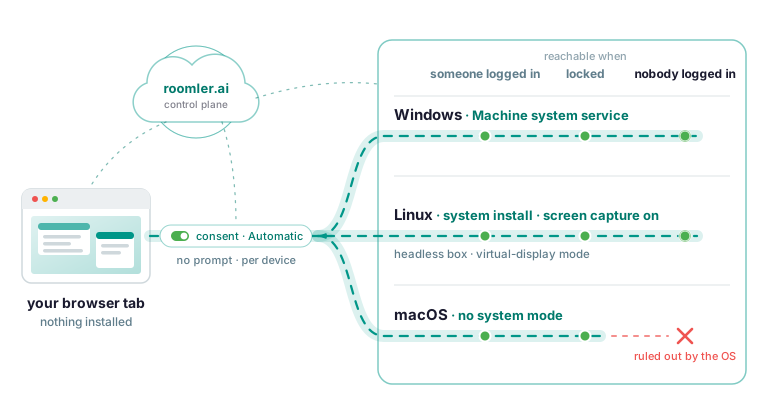
Two settings decide whether you can reach a machine when nobody is sitting at it. The first is the device’s consent mode: set it to Automatic and the machine stops prompting before it hands over its screen. The second is the install mode, which decides whether the machine is reachable before anyone logs in: the Machine system service on Windows, a system install with screen capture switched on (or virtual-display mode on a headless box) on Linux, and on macOS no mode at all, because a Mac must be logged in to be reachable as a desktop, though it may be locked. The consent setting comes first below, then the install mode for each operating system.
Two different things called unattended access
The unattended access page splits the feature in two. “Nobody has to approve” means the machine does not prompt before handing over its screen. “Nobody has to be logged in” means it is reachable at the lock screen, or with no session at all. They live in different places because they are different risks: the first is a per-device consent setting in the dashboard, the second is an operating-system question, and the install mode answers it differently on each platform.
Everything below is configured on the machine you are reaching; the viewing side is a browser tab with nothing installed.
Skip the prompt, one device at a time
By default a machine asks the person sitting at it before handing over its screen, and the setting is per device. The consent page lists three modes.
| Mode | What happens | Use it for |
|---|---|---|
| Ask | A prompt appears on the machine and the session waits | Colleagues’ machines, customer support |
| Ask, then fall back to the owner | Prompt on the machine; if nobody answers, the request goes to the device owner by email or push | Machines that are sometimes attended |
| Automatic | No prompt | Your own servers and unattended workstations |
Automatic is the only value that skips the prompt, and a device with no consent setting at all asks. The dashboard makes it a per-device switch.
The middle mode is the one vendor pages skip. When the prompt on the machine goes unanswered, the machine’s own window closes and the request is handed to the device owner as a link they can approve from anywhere, including from a phone, without signing in.
Two rules apply to Automatic. It means anyone with permission to view that device gets its screen with no human in the loop, which the docs call exactly right for a rack server and exactly wrong for a colleague’s laptop. And the device’s own setting is a floor: if the machine itself is configured to always ask, an administrator setting Automatic on the server does not override it, so that a device-held control still refuses if the control plane is compromised.
When nobody answers an Ask prompt, the session is refused on a time limit and the controller is told the reason was a timeout, which is a different fact from a denial. When no prompt could be shown at all, the controller sees “no prompt surface”, the difference between a person refusing you and nobody being there to ask. Either reason on a machine nobody is at means the device is still asking, so there is no colleague to go looking for; set that device to Automatic.
Windows: the system service mode reaches the lock screen
Windows has three ways to run the agent, and the install page is clear that the choice decides whether the machine is reachable at the lock screen, before anyone logs in, and through a UAC prompt.
| Mode | Runs as | Reachable when | Use it for |
|---|---|---|---|
| Machine system | LocalSystem, a Windows service | Always: lock screen, UAC prompts, before any user logs in | Servers and unattended workstations |
| Machine attended | A Windows service, no SystemContext | A user is logged in | Shared machines where you do not want pre-logon access |
| Per user | A scheduled task at logon, your own account | You are logged in | Your own laptop, or where you have no admin rights |
The reason is the secure desktop. The lock screen and UAC prompts live on a separate desktop that only a system-mode service can see. An attended machine service has no access to it, and a per-user task does not exist until you log in, so neither reaches the login screen before anyone has signed in.
Install from an Administrator PowerShell:
& ([scriptblock]::Create((irm https://roomler.ai/api/setup/install.ps1))) -Role daemon-system -Token <token> -Server https://roomler.aiIf you installed in another mode, the same line, with -Role daemon-system, re-runs the installer and switches the existing install into system mode. The two machine-wide roles, daemon-system and daemon-machine, register a Windows service and need administrator rights; from a normal PowerShell prompt the install fails partway through rather than at the beginning. The message is “Access denied”.
Then check that the service exists and the agent is enrolled:
Get-Service Roomler
roomler status
The status output includes the mode the agent runs in. The classic symptom of the wrong one, as per-OS permissions puts it, is a session that works until the remote machine locks or shows a UAC prompt and then freezes on the last frame. That is the secure desktop, and the fix is the re-run above.
Two details from platform support matter on an unattended Windows machine. The device tells you “the host is locked” before you connect. Ctrl+Alt+Del is sent as the real key combination from a Machine system install where policy allows. You send it through the session toolbar’s key-send control, because the operating system you are sitting at intercepts that combination before the browser sees it.
Linux: match the install to the machine
The Linux install page has a root system unit and a per-user unit, and the docs give three unattended cases.
A machine with a desktop can run the per-user unit, the default with no flag. It shares the session you are logged into, on X11 or Wayland, and starts when you log in, so with consent on Automatic it satisfies the first half of unattended access and cannot satisfy the second.
A system install (--system) runs as root from boot. On GNOME and KDE it shows the desktop of the person signed in at the screen by itself, while that session is unlocked and the person can be told who is viewing. It never shows the login screen or a locked screen on its own, and the viewer says why instead of showing black. To reach those too, switch screen capture and input on in the device’s configuration, which the docs name as drm_capture and uinput; the agent then reads whatever the screen shows, the login screen included, which the docs call the Linux counterpart of the Windows system mode.
A headless machine has no session to capture, and the black screen page lists black on a headless box under exactly that cause. Enable the agent’s virtual-display mode in its configuration; the machine then has a screen, and View screen drops you into a live console instead of failing.
The system install is one line:
curl -fsSL https://roomler.ai/api/setup/install.sh | sh -s -- \
  --role daemon --system --token <token> --server https://roomler.ai --name "$(hostname)"
The per-user form is the same line without --system.
Set capture, input and the virtual display in the device’s configuration rather than through an environment variable, so the settings survive a reboot and apply to a daemon started outside systemd. The CLI writes the file atomically and keeps a previous copy:
roomler config ls
roomler config set <key> <value>
roomler config clear <key>
On a system install the same commands take sudo, as the status check does:
roomler status     # per-user install
sudo roomler status # system install
The trade-off is the clipboard. Text, formatted text and images copy across on a per-user install and do not on a system install. Only a system install puts the machine on the private network with its own adapter.
macOS: logged in, possibly locked, is the limit
macOS has no equivalent of the Windows system mode. Screen capture requires a GUI login session; a root process in session 0 has no WindowServer and cannot capture anything, however it is configured. In practice a Mac must be logged in to be reachable as a desktop, though it may be locked. Platform support marks the lock screen and sign-in screen as ruled out by the operating system, because reaching the login window would take a different kind of install, managed through MDM.
The macOS install page runs the agent as two halves. The user half runs as you, inside your login session, and does screen capture, input and clipboard; the root half runs as root from boot and does the mesh and tunnels, so it exists for the network and never captures a screen. A Mac with both halves appears as two device rows, the second named with a -daemon suffix; the screen-sharing-only install gives one row. If you only need to see the Mac, install the user half alone:
curl -fsSL https://roomler.ai/api/setup/install.sh | sh -s -- \
  --role daemon --token <token> --server https://roomler.ai --name "$(hostname)"
Then open System Settings, Privacy & Security, and enable Roomler Daemon under two headings: Screen & System Audio Recording, without which the stream is wallpaper only, and Accessibility, without which keys and clicks are silently dropped. macOS reports no error for either; the menu-bar app names the missing grant, and the device list shows “No screen access” or “No input access”. After granting, restart the user half:
launchctl kickstart -k gui/$(id -u)/com.roomler.agentFor an unattended Mac, Automatic consent still removes the approval step. You can lock it and it stays reachable. A reboot leaves it unreachable as a desktop until someone signs in at it, and no setting changes that.
When the screen is the wrong tool
Screen sharing is the wrong tool when a machine is unreachable because something on it is broken. Two alternatives ride the agent’s existing control connection rather than the mesh: remote commands, which run a command on a trusted device from the dashboard or the CLI with every attempt audited, and Roomler SSH, a real shell with no sshd and no open port on the target.
Both are off by default and stay off until four independent levels allow them, which device policies calls gates: the organization, the person’s permission (which is not in the default administrator role), the device policy, and the machine’s own configuration, which the server cannot write. Commands inherit the agent’s identity, SYSTEM on Windows and root under systemd, so grant them to the people you would give root to. Once enabled, both take a device name, a dashboard display name or the hex id:
roomler exec <device> -- <command>     # <device>: device name, display name or hex id
roomler ssh <device>
On a Mac, “run as the machine” for SSH is root on the root half, which runs from boot.
What the free plan allows for unattended machines
The free plan covers 10 users and 100 devices, commercial use included, with remote desktop, the private network, tunnels, chat and calls, so nothing in this article needs a card. Nothing tries to detect commercial use. That is the most common complaint about the incumbents’ free tiers: being flagged as a commercial user and locked out mid-session.
One limit matters for a team sharing unattended servers. On the Free plan an organization runs one remote session at a time, and a second attempt is refused with a message naming who is connected and to which machine. Pro runs one session per user and Business has no cap. Self-hosting has no plan limits at all.
The unattended machine needs no inbound port and no router forwarding, because both ends connect outbound and meet in the middle.
TeamViewer and AnyDesk do two things better that matter here. They have mobile clients, and they let you help a stranger by reading an ID and a password to each other, which Roomler cannot do because both machines must be in the same organization. The tour of the remote desktop has its own section on what TeamViewer does better.
Treat it as a standing key
The docs call unattended access a standing key to a machine, and the feature people most often turn on everywhere and then forget. Two habits keep it in check: grant it per device, since the dashboard makes it a per-device switch for a reason, and read the audit log occasionally.
For remote sessions the audit holds who connected, to which device, when, from where, and the outcome. Every refusal is recorded with its reason, whether denied, timed out or no prompt surface. Records are kept for 90 days. They can be exported for longer retention or an external SIEM, and since expiry is automatic the export has to happen before the window closes.
The pixel stream, the keystrokes and the terminal contents are deliberately never recorded, so an unattended machine’s log says who was there and never what they saw or typed. The device list shows which capabilities each machine has switched on; these are the settings people turn on for one debugging session and never turn off, so read it now and then. One platform detail: Windows and Linux can lock the computer when the last session ends, and macOS cannot.
Install Roomler on one machine and open its desktop from a browser tab.