
Remote desktop without port forwarding or an open 3389
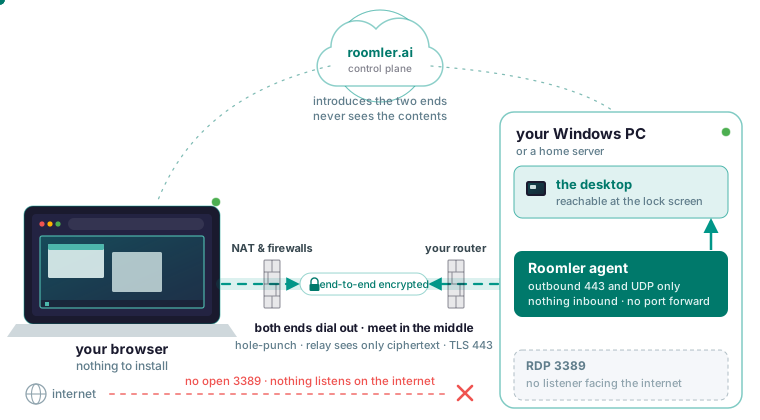
You can reach your own Windows PC or home server from anywhere with no port forward on the router and no RDP listener facing the internet, because with a Roomler agent on the machine both ends connect outbound and meet in the middle, as the FAQ puts it. When both ends are behind NAT they hole-punch a path through it; if that fails they fall back to a relay that forwards ciphertext it cannot read, and if every UDP path is blocked the connection runs over TLS on port 443. The only inbound port anywhere is on a relay you choose to run, and no other machine needs anything inbound.
Why forwarding 3389 is the wrong fix
A port forward sends whatever arrives on one public router port to the RDP listener on one PC, so RDP becomes reachable by anyone who can reach the router’s public address. That fails you twice. Under CGNAT, or on a hotel, campus or corporate network, there is no public address of your own to forward to; where it does work, it leaves a listener facing the internet all day. A tunnel service that publishes RDP on a public host and port moves that listener to an address the service picked, still on the internet for anyone who finds it.
With a Roomler agent, nothing on any machine listens on the internet: both ends connect outbound, and no port forward is ever required on any machine.
You may have tried Hamachi or Chrome Remote Desktop on the way here, and TeamViewer, which may have flagged you as a commercial user. Roomler’s plans count devices and users, and no heuristic decides whether you look like a business. TeamViewer and AnyDesk still do things better: mobile clients, a refined attended-support workflow, and helping a stranger by reading an ID and a password to each other, which Roomler cannot do today because both machines must be in the same organization.
How a connection crosses NAT with no inbound port
An agent’s needs fit in three rows on the ports and firewall page.
| Direction | What | Why |
|---|---|---|
| Outbound TCP 443 | To your server | The control connection, and the connectivity floor |
| Outbound UDP | To peers and relays | Direct paths and hole-punching |
| Inbound | Nothing | Both ends connect outbound; nothing listens on the internet |
When you click View screen, the server checks that you are allowed and introduces the two ends to each other. The two ends negotiate the fastest path that works, and video, input, clipboard and file transfer flow over it; the server is out of the way and never sees the contents. The paths form a ladder, tried in order.
- Two machines on the same local network use it, the lowest latency available.
- If one or both ends is reachable at a public address, they connect directly across the internet.
- With both behind NAT, the two ends coordinate to open a path through it at the same moment; this is the common case, and it works far more often than people expect.
- When no direct path exists, traffic is forwarded through a relay that only ever sees ciphertext.
- Where every UDP path is blocked, the mesh still runs over TLS on port 443.
Both ends measure what works and decide from that; a NAT-type classifier supplies a hint at most, because networks lie.
The viewing side installs nothing: the controller is a plain browser, and Chrome, Edge or another Chromium browser is the recommendation.
When only outbound 443 is allowed
The same page puts a restrictive network in three rows.
| Situation | Result |
|---|---|
| Outbound 443 only | Everything works, over relayed paths |
| Outbound UDP permitted | Direct paths become possible |
| Outbound 443 blocked | Nothing works; this is the minimum |
On a locked-down network you lose quality and keep the connection, because 443 is the one port that survives essentially every corporate network: blocking it blocks the web. If you can ask a network admin for one thing, ask for outbound UDP: it is the difference between relayed and direct, which for remote desktop is the difference between usable and pleasant.
For a machine on a corporate network, the admin’s allow-list needs three hosts.
| Host | For |
|---|---|
roomler.ai, or your own server’s hostname |
The API, the control connection, the relay floor, the Windows installer (MSI) and the tunnel CLI |
github.com and release-assets.githubusercontent.com |
The Linux and macOS packages, the desktop companion, and every automatic update |
aka.ms |
Windows only: Microsoft’s Visual C++ runtime, when the installer script finds it missing |
The agent checks every download before installing it: the publisher’s Authenticode signature on Windows, and on Linux and macOS a GPG signature against a key built into the agent. On a restrictive network, this is the command to read.
roomler netcheck # what this machine can actually reachIt reports reachability, the relay verdict, floor health and NAT class as measured from that machine, with nothing assumed from the firewall’s configuration.
What a relay sees, and the one optional inbound port
Encryption is end to end on every rung of the ladder, and a relay forwards bytes it cannot decrypt, so putting one in the path is a decision about performance with no bearing on privacy. The server holds accounts, device rows, permissions and audit records, and no session video, keystrokes, tunnel contents, SSH bytes or mesh traffic. After introducing two machines it is not on the path, so there is nothing for it to log even in principle.
Relays come in three kinds, in increasing order of preference: the TLS floor on the server, always available; a standard UDP relay, Roomler’s or yours; and an organization relay on a machine you own, where the traffic stops crossing Roomler’s infrastructure.
A relay you run is the one inbound port in the whole design: it listens on UDP 3478 by default, on that one machine only, and no other machine needs anything inbound. The port was chosen by measurement: symmetric-NAT corporate networks were measured to reach 3478 and higher-numbered alternatives were not, so do not expect it to work as well on a random high port.
Relaying is gated four ways: an organization mode that is off by default, an access rule that makes the relay visible to each party, a per-device approval needing two permissions, and the machine’s own opt-in, which the server cannot push. The opt-in is the relay_server_enabled key in the machine’s own configuration. Set it with the CLI.
roomler config set <key> <value>An organization relay engages on a path change, so a pair already on the floor stays there until its path changes; when testing, restart one of the two machines to provoke the decision. If you self-host, a separate TURN server is not on the critical path: the built-in floor already guarantees connectivity when no direct path exists.
Set up a Windows machine you can reach unattended
This is the Windows path; for macOS and Linux, the install step of the quickstart points to each platform’s page.
Create a workspace, then open Devices, then Enroll device, to mint a token. A token is a single-use, short-lived credential, and anyone holding it can join a machine to your organization, so paste it into a terminal, never a chat room, and mint a fresh one if it goes astray.
Pick the service mode before installing, and pick the system service (Machine, system in the wizard, daemon-system on the command line): it runs as a Windows service under LocalSystem and is reachable at the lock screen, through UAC prompts and before any user logs in, which is what an RDP user takes for granted. The other two modes cannot reach the secure desktop, because an attended machine service has no access to it and a per-user task does not exist until you log in. If you installed in another mode, re-run the installer with -Role daemon-system.
Run the one line from the Windows install page in an Administrator PowerShell; from a normal prompt it fails partway through, because registering a service needs administrator rights.
& ([scriptblock]::Create((irm https://roomler.ai/api/setup/install.ps1))) -Role daemon-system -Token <token> -Server https://roomler.aiThen confirm the agent is running and enrolled.
roomler statusBack in Devices, the machine appears within a few seconds. Online means the server holds a live socket to the agent, Stale means it is heartbeating with no live socket and usually self-heals inside about two minutes, and Offline means no heartbeat at all.
Click the device, then View screen. By default the machine asks the person sitting at it, and a device with no consent setting asks too, because an absent instruction means ask. For your own unattended PC, set that device’s consent mode to Automatic, per device and deliberately, because Automatic means anyone with permission to view the device gets its screen with no human in the loop. The device’s own setting is a floor that a server-side policy cannot loosen. Every session and every refusal lands in the audit log with who, when and from where, so read it occasionally.
Check which path you are on
The session window shows a LAN, Direct or Relay indicator: LAN is the same local network and the best case, Direct is straight across the internet with latency set by the network, and Relay means no direct path, higher latency and capped bandwidth. Relay is a stage: the pair keeps re-attempting a direct path permanently, and there is no state in which the software has given up. Upgrades are make-before-break, so a live session is not interrupted.
From a terminal on either machine, in this order:
curl -sI https://roomler.ai/health     # or your own server
roomler netcheck                       # what this machine can actually reach
roomler peers                          # which path each peer is on
roomler why <peer>
The curl line proves outbound HTTPS to the server. roomler netcheck reports what this machine can reach, as measured. Next, roomler peers lists every peer with the path currently carrying it. Last, roomler why explains why one peer rides the path it does: which tier was eligible, what it scored, and whether a hold-down is overriding the ranking.
If the indicator says Relay, the causes in the order they occur are a VPN client on one end, the most common by a wide margin; symmetric NAT on both ends; UDP blocked outbound; and one end that just moved and is re-converging, which takes a minute or so. Cannot connect walks the full diagnosis, and the pitfalls below are the ones this setup runs into.
Pitfalls
- The indicator says Relay although both machines sit on the same office network, and the session feels sluggish. A VPN client on one end has captured the local network range, including the ranges private meshes use, while every surface reports normally. Disconnect the VPN on one end and the pair converges to Direct in under a minute. Some enterprise VPN clients also reap other software’s routes and keep the pair relayed for as long as they are connected. Check this before touching any quality setting.
- A machine works everywhere except one office, where it is always relayed. That network permits only TCP 443, so the pair runs on the TLS floor: the mesh works and will not be direct. Confirm it with
roomler netcheck, then ask the admin for outbound UDP, the one allowance that turns relayed into direct. - Both ends are behind symmetric NAT, as on some mobile networks and a few corporate firewalls, and hole-punching never succeeds. When both NATs assign a different external port per destination, a relay is the correct outcome. If many pairs are relayed, run an organization relay on a machine you own so the traffic stays on your hardware and bandwidth, and restart one of the two machines so it engages.
- The device shows Offline right after install, or never appears in Devices. The agent needs outbound HTTPS and nothing inbound, so run the curl line above from the machine; a failure there is a proxy, firewall, DNS or captive-portal problem. A device that never appeared means an earlier attempt spent the single-use token; mint a fresh one.
- The session works until the Windows machine locks, then freezes on the last frame, or the login screen is unreachable. The agent is not in system service mode: the lock screen and UAC prompts live on a separate secure desktop that only a system-mode service can see, so re-run the installer with
-Role daemon-system. - Your own unattended server refuses with a timeout, and nobody saw a prompt. The device’s consent mode is Ask, which is also what an absent setting means; set that device to Automatic. A timeout, or no prompt surface, is a different fact from a denial, and the controller is told which, so nobody refused you.
- A corporate allow-list or endpoint protection blocks the installer or its updates. Allow the three hosts in the table above; every Windows binary is Authenticode-signed and the Linux and macOS artifacts carry GPG signatures, the evidence a security team asks for when granting an exception.
- One machine lists the peer and the peer does not list it back, so the session works in one direction only. Path changes are not always symmetric; one end can converge before the other, and the mismatch resolves on its own, sometimes slowly. Gather diagnostics from both ends before concluding anything, because a connectivity problem is a property of the pair.
If you still want the Windows Remote Desktop client
The browser viewer needs none of this, and it is the path the rest of this article assumes. If you would rather keep the native client, the same agent can put the machine on the private mesh, where it gets a stable private address and a name that other enrolled machines reach directly, with no port forwarding and no public exposure. On Windows and Linux the mesh comes up with the agent; on macOS it needs the root half of the install. Once two machines are on it:
roomler status          # this machine: address, name, carrier
roomler peers           # everything else on the mesh, and how it is reached
Then reach a service on the far machine by name or address, as if on the same LAN. The other route is a tunnel: it forwards a port on the machine you sit at to a service on the remote one, exposes nothing to the internet, and leaves the remote service listening only where it always did. The docs’ example forwards a database port:
roomler forward --agent <agent-id> --local 5432 --remote localhost:5432Substitute the port of the service you want. The --agent flag takes the hex device id from the device’s page in the dashboard; a friendly name fails in a way that looks like the device is missing.
Frequently asked questions
Do I need to open ports or forward anything on my router?
No. Both ends connect outbound and meet in the middle; the only inbound port anywhere is on a machine you deliberately configure to relay other machines’ traffic.
Does it work behind a corporate firewall, or when my ISP gives me no public IP address?
Usually, yes. Agents need only outbound access, hole-punching handles both ends behind NAT, and with every UDP path blocked the mesh still runs over TLS on port 443, so the quality degrades and the connection survives.
Can I reach a Windows machine that nobody is logged into?
Yes, if the agent was installed in the system service mode, which reaches the lock screen and the pre-logon desktop. A Mac must be logged in, though it may be locked.
Can Roomler, or the relay, see my screen?
No. Video and input travel end to end between your browser and the machine, a relay forwards ciphertext it cannot read, and the pixel stream is never recorded.
Try it on one machine
Remote desktop works on its own, and the mesh is optional. On a healthy path you will see a session that feels direct and an indicator reading LAN or Direct. If you do ad-hoc support for strangers outside your organization, or you need mobile clients, stay with TeamViewer or AnyDesk. Install Roomler on one machine and open its desktop from a browser tab: quickstart.